from small one page howto to huge articles all in one place
Last additions:
May 25th. 2007:
April, 26th. 2006:
| 
. 
Copyright © 2000-2003 Werner Heuser
Copyright (c) 2000-2003 Werner Heuser.
For all chapters permission is granted to copy, distribute and/or modify this document under the terms of the GNU Free Documentation License, Version 1.1 or any later version published by the Free Software Foundation; with the Invariant Sections being "Preface" and "Credits", with the Front-Cover Texts being "Linux Infrared HOWTO", and with the Back-Cover Texts being the section "About the Document and the Author". A copy of the license is included in the section entitled "GNU Free Documentation License".
$Date: 2003/06/16 13:57:15 $ Abstract
The Infrared-HOWTO provides an introduction to Linux and
infrared devices and how to use the software provided by the Linux/IrDA
project. This package uses IrDA(TM) compliant standards. IrDA(TM) is an
industrial standard for infrared wireless communication, and most laptops made
after January 1996 are equipped with an IrDA(TM) compliant infrared
transceiver. Infrared ports let you communicate with printers, modems, fax
machines, LANs, and other laptops or PDAs. Speed ranges from 2400bps to 4Mbps.
The Linux/IrDA stack supports IrLAP, IrLMP, IrIAS, IrIAP, IrLPT, IrCOMM, IrOBEX, and IrLAN. Several of the protocols are implemented as both clients and servers. There is also support for multiple IrLAP connections, via several IrDA(TM) devices at once. The Linux/IrDA project started at the end of 1997 and its status is still experimental, so please don't expect every feature working straight. AFAIK Linux/IrDA is the _only_ open source IrDA implementation currently available.
Remote Control (RC) via infrared is the aim of the Linux Infrared Remote Control - LIRC project, and also described in this HOWTO.
About the Document and the Author
Better red, than dead.
--
Unknown AuthorEss
This document is based on the
How to use part of the Linux/IrDA project homepage
and the
Linux/IrDA Tutorial
by Jean Tourillhes.
I have also included material provided by the Linux/IrDA core team, the
Linux/IrDA mailing lists and other sources.
The document is included in the
LINUX DOCUMENTATION PROJECT - LDP
.
The latest version of this document is available at
TuxMobil-HOWTOs.
You may find my Linux-Mobile-Guide (the former Laptop-HOWTO) and
the Linux-Ecology-HOWTO there also.
Mathieu Arnold provides an earlier version of the
IR-HOWTO in French.
A Japanese translation of issue v3.4 is provided by the
Linux Japanese FAQ Project
.
Please feel free to contact me for comments or questions about the
HOWTO. I know this material is not finished or perfect, but I hope you find it
useful anyway. For other questions and current information about Linux/IrDA
please ask in the Linux/IrDA mailing list as explained below.
<Werner Heuser>
The latest kernel I used is 2.4.19 and the latest irda-utils version is
0.9.15.
I tried to check all information but I don't have all the necessary infrared
hardware yet, so if something doesn't work for you, please don't blame me.
Warning
Former kernel and irda-utils versions need a completely
different setup. Since I don't recommend to use former versions, all
references to these setups are removed from this document. You may find
some hints in the chapter Code History.
I have included all the changes to be in sync with the 2.4.x kernel series
and the latest Linux/IrDA development now. Therefore some testing and
proof-reading has still to be done. So please don't expect anything working
straight out of the box.
Chapter 1. About the Linux/IrDA Project
The project started at the end of 1997 with the name Linux/IrDA. Due
to some troubles with the name IrDA, which is trademarked by the
Infrared Data Association IrDA , the name was changed to Linux/IR. At
the end of 1998 the the relationship between both became better and
the name was changed to Linux/IrDA again. Since February 1999 the
project is an official member of IrDA .
Companies and developers which are interested in joining these efforts
should contact the at Linux/IrDA Project or me at <wehe_at_tuxmobil.org>.
The Linux/IrDA project has undertaken some changes in the program
code, which you should know to understand some possible confusions
with older documentation, which you shouldn't use anyway.
For 2.0.x kernels Linux/IrDA support worked in a totally other way
(only user-land programs) and is no longer supported by the
Linux/IrDA project. Since 2.1.131 and 2.2.0 it is part of the kernel.
Warning
Some caveats in the documentation have been caused by changes of the following
parameters. I hope I have got them alright now, they confused me
sometimes, too. The new style stuff works from Kernel 2.2.15 / 2.4.0.
You should always use current Kernel, irda-utils and documentation.
the major device number of the irda device changed from 61 to 161
(as far as I remember there was also a major number 60 around, too),
also there have been different and now obsolete minor device numbers
around, see the list of current device numbers below
the irmanager is obsolete now,
its tasks are now achieved by
irattach
the module name /dev/ircomm_tty changed to /dev/ircomm-tty
, but there are other modules around which use either "-" or "_" in there names,
this might be confusing
the device names /dev/irnine and /dev/ircomm_new are obsolete
IrLPT is handled by IrCOMM now. So all references to irlpt_server
are obsolete.
From irda-utils 0.9.15 the behaviour of the -s
option of irattach has changed. The option
must not use the parameter 1 anymore.
Chapter 2. Getting Started
The commands provided by the irda-utils package are the basic set of
tools to get a working IrDA connection. The other tools (e-Squirt,
IrNET, ..) are optional. Since version 0.9.15 manual pages are included.
Most current manual pages are at
TuxMobil.
Use the latest source of irda-utils available at Linux/IrDA
Project. Also recommended is the glibc library. You may find
out the current version with ldd --version.
The use of the older libc5 library may lead to compile errors.
Untar the package with tar xvzf irda-utils<VERSION>
. I recommend to do this in /usr/src.
Do a make clean (not necessary if you
compile the package for the first time).
Do a make all to build the binaries.
Do a make install, this brings all
commands into the right place
and installs some config files in /etc/irda.
Sometimes, when you compile the IrDA stack or some various IrDA package, you may have the compiler complaining the things such as IRLMP_HINT_MASK_SET or IRDAPROTO_ULTRA are not defined.
This is because of a mess related to kernel headers and the way most distributions deal with it. If you
have the 2.4.X kernel source lying around, the fix is simple. Just copy the header irda.h from the kernel to your include directory
cp /usr/src/linux/include/linux/irda.h /usr/include/linux
NOKUBI Takatsugu provides an irda-utils Debian package . This package
is part of the Potato Debian release. Also Mandrake since 6.1, Redhat
since 6.1 and SuSE since 6.1 contain RPM packages of the irda-utils.
Some caveat with precompiled packages might be some incompatibilities
between kernel version and appropriate package version.
Contents of Linux/IrDA-Utils
irattach uses the module set as
parameter; it can be a specific
FIR driver: irattach toshoboe
or ircomm (and then it loads the module aliased
as "irda0" in /etc/modules.conf)
If you are one of the lucky people which have a FIR chipset that is
supported, then you don't need to use irattach anymore. Now you just
have to modprobe the driver.
A program that displays all the frames sent, and received on the
infrared link.
One advantage of implementing IrDA device drivers as network device
drivers is that you should be able to attach sniffers to the device
(or actually the packet type). That way, it is possible to use a
really handy utility called irdadump (instead of tcpdump). This will
make debugging MUCH easier. Linux-2.2 implements the BPF (Berkeley
Packet Filter), so its possible to filter out exactly the frames you
want to see.
Note: You probably have to be root for using irdadump . CONFIG_PACKET
has to be enabled in the kernel. If compiled as a module you might
load the module manually. irdadump
has been converted into a library,
so it can be used from GUI applications as well.
Here is a sample output of a small session between Linux and a Palm
III. This log shows that the local irobex layer is not responding, so
the Palm III sends a disc frame.
dagbnb /home/dagb/linux/irda-utils/irdadump/ # ./irdadump

20:18:15.305711 xid:cmd:saddr=0x05c589 > daddr=0xffffffff,S=6,s=0
20:18:15.385597 xid:cmd:saddr=0x05c589 > daddr=0xffffffff,S=6,s=1
20:18:15.465568 xid:cmd:saddr=0x05c589 > daddr=0xffffffff,S=6,s=2
20:18:15.545953 xid:cmd:saddr=0x05c589 > daddr=0xffffffff,S=6,s=3
20:18:15.625574 xid:cmd:saddr=0x05c589 > daddr=0xffffffff,S=6,s=4
20:18:15.705575 xid:cmd:saddr=0x05c589 > daddr=0xffffffff,S=6,s=5
20:18:15.785601 xid:cmd:saddr=0x05c589 > daddr=0xffffffff,S=6,s=255,info=Linux
20:18:18.075526 xid:cmd:saddr=0xb50c14b > daddr=0xffffffff,S=6,s=0
20:18:18.225498 xid:cmd:saddr=0xb50c14b > daddr=0xffffffff,S=6,s=1
20:18:18.375495 xid:cmd:saddr=0xb50c14b > daddr=0xffffffff,S=6,s=2
20:18:18.526355 xid:cmd:saddr=0xb50c14b > daddr=0xffffffff,S=6,s=3
20:18:18.675614 xid:cmd:saddr=0xb50c14b > daddr=0xffffffff,S=6,s=4
20:18:18.676364 xid:rsp:saddr=0x05c589 > daddr=0xb50c14b,S=6,s=4
20:18:18.765506 xid:cmd:saddr=0xb50c14b > daddr=0xffffffff,S=6,s=5
20:18:18.927221 xid:cmd:saddr=0xb50c14b > daddr=0xffffffff,S=6,s=255,info=Palm III
20:18:18.975796 snrm:cmd,ca=0xfe,pf=1
20:18:18.976534 ua:rsp,ca=0x58,pf=1
20:18:18.977145 ua:rsp,ca=0x58,pf=1
20:18:19.585627 rr:rsp,ca=0x58,nr=0,pf=1
20:18:19.585810 rr:rsp,ca=0x58,nr=0,pf=1
20:18:19.606413 i:cmd,ca=0x58,nr=0,ns=0,pf=1
20:18:19.606582 rr:rsp,ca=0x58,nr=1,pf=1
20:18:19.627708 rr:cmd,ca=0x58,nr=0,pf=1
20:18:19.627871 i:rsp,ca=0x58,nr=1,ns=0,pf=1
20:18:19.650571 disc:cmd,ca=0x58,pf=1
20:18:19.650736 ua:rsp,ca=0x58,pf=1
20:18:21.165524 xid:cmd:saddr=0xb50c14b > daddr=0xffffffff,S=6,s=0
20:18:21.315608 xid:cmd:saddr=0xb50c14b > daddr=0xffffffff,S=6,s=1
20:18:21.315793 xid:rsp:saddr=0x05c589 > daddr=0xb50c14b,S=6,s=1
20:18:21.395499 xid:cmd:saddr=0xb50c14b > daddr=0xffffffff,S=6,s=2
20:18:21.545516 xid:cmd:saddr=0xb50c14b > daddr=0xffffffff,S=6,s=3
20:18:21.695500 xid:cmd:saddr=0xb50c14b > daddr=0xffffffff,S=6,s=4
20:18:21.845840 xid:cmd:saddr=0xb50c14b > daddr=0xffffffff,S=6,s=5
20:18:22.007222 xid:cmd:saddr=0xb50c14b > daddr=0xffffffff,S=6,s=255,info=Palm
III
20:18:22.056143 snrm:cmd,ca=0xfe,pf=1
20:18:22.056310 ua:rsp,ca=0xc8,pf=1
20:18:22.056381 ua:rsp,ca=0xc8,pf=1

37 pacckets received by filter
Makes it possible to try and ping a remote device using IrDA test
frames. Not all devices implements support for test frames. This is a
program similar to ping(8). It sends IrDA test frames (added some
userdata which contains the frame number and the time the frame was
sent). You can also change the size of the frame by using the -s
option. You must supply an IrDA device address, and not an IP address.
You have to be able to get that device address by using irdadump.
Here is one output sample (pinging an ACTiSYS IR-100M):
dagbnb /home/dagb/linux/irda-utils/irdaping/ # ./irdaping 0xf7be8388
IrDA ping (0xf7be8388): 32 bytes
32 bytes from 0xf7be8388: irda_seq=0 time=102.466003 ms.
32 bytes from 0xf7be8388: irda_seq=1 time=102.202003 ms.
32 bytes from 0xf7be8388: irda_seq=2 time=102.170998 ms.
32 bytes from 0xf7be8388: irda_seq=3 time=101.633003 ms.

4 packets received by filter
From : Christian Gennerat
I use an alias which does not use any parameter (in $HOME/.bashrc):
alias irping="irdaping \`grep daddr /proc/net/irda/discovery|sed s/.*daddr://\`"
It works fine when there is only one discovered client.
Implements support for the mouse and keyboard protocol as used by the
Tekram IR-660 infrared docking station. For details on how to use
external keyboards with Linux PDAs see below.
Tries to find out which FIR IrDA chipset your machine is using. Try
out findchip -v to check it out. For other methods to detect the
chipset see below.
A collection of programs which uses IrDA sockets.
File transfer program for exchanging files with your Psion PDA.
This directory contains the configuration files, e.g. for the
serial port of the SIR driver irda.conf.
For first testing you should configure the SIR IrDA driver.
The overall goal of the
OpenOBEX
project is to make an open source
implementation of the Object Exchange (OBEX) protocol. OBEX is a
session protocol and can best be described as a binary HTTP protocol.
OBEX is builtin in devices
like PDA's like the Palm Pilot, and mobile phones
like the Ericsson R320, Siemens S25, Siemens S45, Siemens ME45, Nokia NM207 and
Nokia 9110 Communicator.
OBEX is optimised for ad-hoc wireless links and can be used to exchange all kind of
objects like files, pictures, calendar entries (vCal) and business cards
(vCard). A typical application is the "beam" function of PalmOS.
e-Squirt is a simple protocol for sending URLs over the IrDA medium.
This allows for interaction with CoolTown enabled devices.
IrNET
is a protocol allowing to carry TCP/IP traffic between two IrDA
peers in an efficient fashion. It is a thin layer, passing PPP packets
in a IrTTP socket. It uses PPP in synchronous mode for efficiency, and
offers lots of flexibility and various features. The main part of
IrNET in included in kernel 2.4.x, and a user-space daemon (to
automate connections) is available on the web page.
This
Java Infrared Socket API
provides a way of communicating through
infrared medium on a linux machine using Java. Thus, Java application
developers can develop applications involving infrared access much
easily. The API is very similar to java.net.Socket API and has been
implemented using the Linux infrared stack. Both connection oriented
streams (IrSocket and IrServerSocket) and connectionless Ultra
(UltraSocket, UltraPacket) interfaces are available.
Please read the Kernel-HOWTO to get more information about the
compilation process. Get the latest patches from
Linux/IrDA Project
or the Linux/IrDA mailing list archives.
You'll find the Linux/IrDA Kernel code in:
/usr/src/linux/net/irda (protocol stuff)
/usr/src/linux/drivers/net/irda (device drivers)
/usr/src/linux/include/net/irda (header files)
Make sure you use kernel 2.4.x sources. If unsure about your kernel
version try uname -r.
Get the latest kernel patch from the Linux/IrDA project . Or from the
Alan Cox kernel series . Put it into /usr/src
or where else your
kernel sources live and apply something like (replace
patch-2_2.0-irdaXXX with the actual file name):
cd /usr/src
tar xvzf patch-2_2.0-irdaXXX.tar.gz
cd linux
patch -p1 -l < ../patch-2_2.0-irdaXXX
For latest drivers maybe experimental support has to be enabled
CONFIG_EXPERIMENTAL.
Enable sysctl in "General Setup" CONFIG_SYSCTL.
You should have proc file system support CONFIG_PROC_FS.
Also serial support for the SIR features CONFIG_SERIAL.
I am not sure whether there has to be printer support for using a
printer with Linux/IrDA CONFIG_PRINTER. But I assume this feature is
not necessary.
Networking support _must_ be enabled CONFIG_NET.
Make sure you have module support CONFIG_MODULES in your kernel! Test
it e.g. with lsmod.
Also kerneld support CONFIG_KERNELD. But kmod (CONFIG_KMOD) also
works. A monolithic kernel seems to work, too. But modules are highly
recommended!
To use irdadump you probably have to set CONFIG_PACKET.
If you only apply the Linux/IrDA patch, you should not have to do a
make clean, so that should save you some time. I suggest you do
something like this:
make dep && make all && make modules
&& make install && make modules_install
If you get really strange errors, then try to rebuild from scratch
after a make clean.
The following is from ../linux-2.4.3/Documentation/Configure.help
with some modifications by me.
Please consult the latest available kernel
documentation for current information and new drivers.
CONFIG_IRDA
Say Y here if you want to build support for the IrDA (TM) protocols.
The Infrared Data Associations (tm) specifies standards for wireless
infrared communication and is supported by most laptops and PDA's.
To use Linux support for the IrDA (tm) protocols, you will also need
some user-space utilities like irattach
. For more information, see the file
Documentation/networking/irda.txt. You also want to read the
InfraRed-HOWTO, available at
TuxMobil
.
This support is also available as a module called irda.o. If you
want to compile it as a module, say M here and read
Documentation/modules.txt.
IrDA Cache last LSAP
CONFIG_IRDA_CACHE_LAST_LSAP
Say Y here if you want IrLMP to cache the last LSAP used. This makes
sense since most frames will be sent/received on the same
connection. Enabling this option will save a hash-lookup per frame.
If unsure, say Y.
IrDA Fast RR's
CONFIG_IRDA_FAST_RR
Say Y here is you want IrLAP to send fast RR (Receive Ready) frames
when acting as a primary station. This will make IrLAP send out a RR
frame immediately when receiving a frame if its own transmit queue
is currently empty. This will give a lot of speed improvement when
receiving much data since the secondary station will not have to
wait the max. turn around time before it is allowed to transmit the
next time. If the transmit queue of the secondary is also empty the
primary will back off waiting longer for sending out the RR frame
until the timeout reaches the normal value. Enabling this option
will make the IR-diode burn more power and thus reduce your battery
life.
If unsure, say N.
IrDA Debug
CONFIG_IRDA_DEBUG
Say Y here if you want the IrDA subsystem to write debug information
to your syslog. You can change the debug level in
/proc/sys/net/irda/debug
If unsure, say Y (since it makes it easier to find the bugs).
IrLAP Compression support
CONFIG_IRDA_COMPRESSION
Compression is _not_ part of the IrDA(tm) protocol specification,
but it's working great! Linux is the first to try out compression
support at the IrLAP layer. This means that you will only benefit
from compression if you are running a Linux <-> Linux configuration.
If you say Y here, you also need to say Y or M to a compression
protocol below.
IrLAP Deflate Compression Protocol (EXPERIMENTAL)
CONFIG_IRDA_DEFLATE
Say Y here if you want to build support for the Deflate compression
protocol. The deflate compression (GZIP) is exactly
the same as the one used by the PPP protocol.
If you want to compile this compression support as a module, say M
here and read Documentation/modules.txt. The module will be called
irda_deflate.o.
IrLAN Protocol
But currently the IrLAN protocol is no longer maintained
by the Linux/IrDA core team.
CONFIG_IRLAN
Say Y here if you want to build support for the IrLAN protocol. If
you want to compile it as a module (irlan.o), say M here and read
Documentation/modules.txt. IrLAN emulates an Ethernet and makes it
possible to put up a wireless LAN using infrared beams.
The IrLAN protocol can be used to talk with infrared access points
like the HP NetbeamIR, or the ESI JetEye NET. You can also connect
to another Linux machine running the IrLAN protocol for ad-hoc
networking!
IrCOMM Protocol
CONFIG_IRCOMM
Say Y here if you want to build support for the IrCOMM protocol. If
you want to compile it as a module (you will get ircomm.o and
ircomm-tty.o), say M here and read Documentation/modules.txt. IrCOMM
implements serial port emulation, and makes it possible to use all
existing applications that understands TTY's with an infrared link.
Thus you should be able to use application like PPP, minicom and
others. Enabling this option will create two modules called ircomm
and ircomm-tty.
IrTTY IrDA Device Driver
CONFIG_IRTTY_SIR
Say Y here if you want to build support for the IrTTY line
discipline. If you want to compile it as a module (irtty.o), say M
here and read Documentation/modules.txt. IrTTY makes it possible to
use Linux's own serial driver for all IrDA ports that are 16550
compatible. Most IrDA chips are 16550 compatible so you should
probably say Y to this option. Using IrTTY will however limit the
speed of the connection to 115200 bps (IrDA SIR mode)
If unsure, say Y.
IrPORT IrDA Device Driver
CONFIG_IRPORT_SIR
Say Y here if you want to build support for the IrPORT IrDA device
driver. If you want to compile it as a module (irport.o), say M here
and read Documentation/modules.txt. IrPORT can be used instead of
IrTTY and sometimes this can be better. One example is if your IrDA
port does not have echo-canceling, which will work OK with IrPORT
since this driver is working in half-duplex mode only. You don't
need to use irattach with IrPORT, but you just insert it the same
way as FIR drivers (insmod irport io=0x3e8 irq=11). Notice that
IrPORT is a SIR device driver which means that speed is limited to
115200 bps.
If unsure, say Y.
Winbond W83977AF IrDA Device Driver
CONFIG_WINBOND_FIR
Say Y here if you want to build IrDA support for the Winbond
W83977AF super-io chipset. This driver should be used for the IrDA
chipset in the Corel NetWinder. The driver supports SIR, MIR and FIR
(4Mbps) speeds.
If you want to compile it as a module, say M here and read
Documentation/modules.txt. The module will be called w83977af_ir.o.
NSC PC87108 IrDA Device Driver
CONFIG_NSC_FIR
Say Y here if you want to build support for the NSC PC87108 and
PC87338 IrDA chipsets. This driver supports SIR,
MIR and FIR (4Mbps) speeds.
If you want to compile it as a module, say M here and read
Documentation/modules.txt. The module will be called nsc-ircc.o.
Toshiba Type-O IR Port Device Driver
CONFIG_TOSHIBA_FIR
Say Y here if you want to build support for the Toshiba Type-O IR
chipset. This chipset is used by the Toshiba Libretto 100CT, and
many more laptops. If you want to compile it as a module, say M here
and read Documentation/modules.txt. The module will be called
toshoboe.o.
SMC IrCC (Experimental)
CONFIG_SMC_IRCC_FIR
Say Y here if you want to build support for the SMC Infrared
Communications Controller. It is used in the Fujitsu Lifebook 635t
and Sony PCG-505TX. If you want to compile it as a module, say M
here and read Documentation/modules.txt. The module will be called
smc-ircc.o.
ALi M5123 FIR Controller Driver (Experimental)
CONFIG_ALI_FIR
Say Y here if you want to build support for the ALi M5123 FIR
Controller. The ALi M5123 FIR Controller is embedded in ALi
M1543C, M1535, M1535D, M1535+, M1535D South Bridge. This
driver supports SIR, MIR and FIR (4Mbps) speeds.
If you want to compile it as a module, say M here and read
Documentation/modules.txt. The module will be called ali-ircc.o.
Serial dongle support
CONFIG_DONGLE
Say Y here if you have an infrared device that connects to your
computer's serial port. These devices are called dongles. Then say Y
or M to the driver for your particular dongle below.
Note that the answer to this question won't directly affect the
kernel: saying N will just cause this configure script to skip all
ESI JetEye PC Dongle
CONFIG_ESI_DONGLE
Say Y here if you want to build support for the Extended Systems
JetEye PC dongle. If you want to compile it as a module, say M here
and read Documentation/modules.txt. The ESI dongle attaches to the
normal 9-pin serial port connector, and can currently only be used
by IrTTY. To activate support for ESI dongles you will have to
start irattach like this: irattach -d esi.
ACTiSYS IR-220L and IR220L+ dongle
CONFIG_ACTISYS_DONGLE
Say Y here if you want to build support for the ACTiSYS
IR-220L and IR220L+ dongles. If you want to compile it as a module,
say M here and read Documentation/modules.txt. The ACTiSYS dongles
attaches to the normal 9-pin serial port connector, and can
currently only be used by IrTTY. To activate support for ACTiSYS
dongles you will have to start irattach like this:
irattach -d actisys or irattach -d actisys+.
Tekram IrMate 210B dongle
CONFIG_TEKRAM_DONGLE
Say Y here if you want to build support for the Tekram IrMate 210B
dongle. If you want to compile it as a module, say M here
and read Documentation/modules.txt. The Tekram dongle attaches to
the normal 9-pin serial port connector, and can currently only be
used by IrTTY. To activate support for Tekram dongles you will have
to start irattach like this: irattach -d tekram.
Greenwich GIrBIL dongle
CONFIG_GIRBIL_DONGLE
Say Y here if you want to build support for the Greenwich GIrBIL
dongle. If you want to compile it as a module, say M here and read
Documentation/modules.txt. The Greenwich dongle attaches to the
normal 9-pin serial port connector, and can currently only be used
by IrTTY. To activate support for Greenwich dongles you will have to
insert irattach -d girbil in the /etc/irda/drivers script.
Parallax Litelink dongle
CONFIG_LITELINK_DONGLE
Say Y here if you want to build support for the Parallax Litelink
dongle. If you want to compile it as a module, say M here and read
Documentation/modules.txt. The Parallax dongle attaches to the
normal 9-pin serial port connector, and can currently only be used
by IrTTY. To activate support for Parallax dongles you will have to
start irattach like this irattach -d litelink.
Old Belkin dongle
CONFIG_OLD_BELKIN_DONGLE
Say Y here if you want to build support for the Adaptec Airport 1000
and 2000 dongles. If you want to compile it as a module, say M here
and read Documentation/modules.txt. The module will be called
old_belkin.o. Some information is contained in the comments at the
top of drivers/net/irda/old_belkin.c.
Note: donauboe is a new version of
toshoboe better FIR support
and compatibility with Donauoboe chip from
lib-irda
This survey of module options was generated with
the modinfo command.
actisys.o
Dag Brattli <dagb_at_cs.uit.no> - Jean Tourrilhes <jt_at_hpl.hp.com>
ACTiSYS IR-220L and IR-220L+ dongle driver

ali-ircc.o
Benjamin Kong <benjamin_kong_at_ali.com.tw>
ALi FIR Controller Driver
io int array (min = 1, max = 4), description "Base I/O addresses"
irq int array (min = 1, max = 4), description "IRQ lines"
dma int array (min = 1, max = 4), description "DMA channels"

esi.o
Dag Brattli <dagb_at_cs.uit.no>
Extended Systems JetEye PC dongle driver

girbil.o
Dag Brattli <dagb_at_cs.uit.no>
Greenwich GIrBIL dongle driver

irport.o
Dag Brattli <dagb_at_cs.uit.no>
Half duplex serial driver for IrDA SIR mode
io int array (min = 1, max = 4), description "Base I/O adresses"
irq int array (min = 1, max = 4), description "IRQ lines"

irtty.o
Dag Brattli <dagb_at_cs.uit.no>
IrDA TTY device driver
qos_mtt_bits int, description "Minimum Turn Time"

litelink.o
Dag Brattli <dagb_at_cs.uit.no>
Parallax Litelink dongle driver

nsc-ircc.o
Dag Brattli <dagb_at_cs.uit.no>
NSC IrDA Device Driver
qos_mtt_bits int, description "Minimum Turn Time"
io int array (min = 1, max = 4), description "Base I/O addresses"
irq int array (min = 1, max = 4), description "IRQ lines"
dma int array (min = 1, max = 4), description "DMA channels"
dongle_id int, description "Type-id of used dongle"

old_belkin.o
Jean Tourrilhes <jt_at_hpl.hp.com>
Belkin (old) SmartBeam dongle driver

smc-ircc.o
Thomas Davis <tadavis_at_jps.net>
SMC IrCC controller driver
ircc_dma int, description "DMA channel"
ircc_irq int, description "IRQ line"

tekram.o
Dag Brattli <dagb_at_cs.uit.no>
Tekram IrMate IR-210B dongle driver

toshoboe.o
James McKenzie <james_at_fishsoup.dhs.org>
Toshiba OBOE IrDA Device Driver
max_baud int

w83977af_ir.o
Dag Brattli <dagb_at_cs.uit.no>
Winbond W83977AF IrDA Device Driver
qos_mtt_bits int, description "Mimimum Turn Time"
io int array (min = 1, max = 4), description "Base I/O addresses"
irq int array (min = 1, max = 4), description "IRQ lines"

irda.o
Dag Brattli <dagb_at_cs.uit.no>
The Linux IrDA Protocol Subsystem
irda_debug_R07c03e02 long

irlan.o
Dag Brattli <dagb_at_cs.uit.no>
The Linux IrDA LAN protocol
eth int, description "Name devices ethX (0) or irlanX (1)"
access int, description "Access type DIRECT=1, PEER=2, HOSTED=3"

   But currently the IrLAN protocol is no longer maintained
   by the Linux/IrDA core team.

ircomm-tty.o
Dag Brattli <dagb_at_cs.uit.no>
IrCOMM serial TTY driver

ircomm.o
Dag Brattli <dag_at_brattli.net>
IrCOMM protocol

irnet.o
<none>
<none>
mknod /dev/ircomm0 c 161 0
mknod /dev/ircomm1 c 161 1
mknod /dev/irlpt0 c 161 16
mknod /dev/irlpt1 c 161 17
mknod /dev/irnet c 10 187
chmod 666 /dev/ir*
There might be some other device number necessary if you want to use
the irkbd features. You may find
the latest device numbers in
../src/linux/Documentation/devices.txt.
First you should put your IrDA devices in range. Though it might be
possible that the Linux/IrDA service detects every new device
automagically I only have good experience with the devices in range
during the configuration process.
Keep your infrared devices together in a range below one meter and an
angle of 30 degree. There has to be a direct line of sight between
them. If this is not possible, you may use a mirror (an unused M$ CD
should work quite good).
Add the following lines to your /etc/conf.modules file:
# IrDA over a normal serial port, or a serial port compatible IrDA port (SIR)
alias tty-ldisc-11 irtty

# IrCOMM (for printing, PPP, Minicom etc)
alias char-major-161 ircomm-tty     # if you want IrCOMM support

# IRLAN
# But currently the IrLAN protocol is no longer maintained
# by the Linux/IrDA core team.
alias irlan0 irlan

# To be able to attach some serial dongles
# These values are hard-coded in irattach (not instance order)
alias irda-dongle-0  tekram             # Tekram IrMate IR-210B
alias irda-dongle-1  esi                # ESI JetEye
alias irda-dongle-2  actisys            # Actisys IR-220L
alias irda-dongle-3  actisys            # Actisys IR-220L+
alias irda-dongle-4  girbil             # Greenwich GIrBIL
alias irda-dongle-5  litelink           # Parallax LiteLink/ESI JetEye
alias irda-dongle-6  airport            # Adaptec Airport 1000 and 2000
alias irda-dongle-7  old_belkin         # Belkin (old) SmartBeam dongle
alias irda-dongle-8  ep7211_ir          # Cirrus Logic EP7211 Processor (ARM)
alias irda-dongle-9  mcp2120            # MCP2120 (Microchip) based
alias irda-dongle-10 act200l            # ACTiSYS Ir-200L
alias irda-dongle-11 ma600              # Mobile Action ma600

# To use the FIR driver. This applies only to the specific device!!!

#options nsc-ircc dongle_id=0x09	# NSC driver on a IBM Thinkpad laptop
#options nsc-ircc dongle_id=0x08	# HP Omnibook 6000
#alias irda0 nsc-ircc

# options smc-ircc ircc_irq= ircc_dma=
# alias irda0 smc-ircc

# options toshoboe max_baud=
# alias irda0 toshoboe

# options w83977af_ir io= io2= irq= qos_mtt_bits=
# alias irda0 w83977af_ir

# IrNET module...
alias char-major-10-187 irnet       # Official allocation of IrNET
Then do a depmod -a to update,
and then all IrDA modules should be
automagically loaded when you need them. Note for testing reasons you
may load them manually, but please make sure not to load them twice.
There might be some other entries necessary, if you want to use the
irkbd features or an USB dongle.
A template file is included into the
irda-utils package.
Note: With Debian GNU/Linux however you shouldn't edit
/etc/modules.conf directly, instead
place the lines inside
/etc/modutils/irda and run
update-modules afterwards.
Have a look into the files in /etc/irda.
Edit them to reflect your setup.
Make sure your infrared port is enabled in the BIOS and check what
interrupt and port address it uses. With some laptops it seems
necessary to have Microsoft-Windows installed to be able to set BIOS
parameters.
I have got reports, that connected to a docking station the infrared
port was disabled on some laptops.
Please decide first whether you want to set up Irda either in SIR or
in FIR mode. It is recommended to start with SIR.
Choose the ttySx according to your SIR port.
Hint: dmesg | grep tty (for details see the
chapter Starting the IrDA Stack below).
To get the SIR "serial" device
have a look into the BIOS. Then run dmesg | grep tty
to get a survey of tty devices supported by your machine. Now try to
choose the one, which is probably the IrDA device.
If you don't succeed with SIR (which seems a rare case) you may
try FIR. First look up the BIOS. To avoid some conflicts
with serial devices you should do
setserial /dev/ttySx uart none.
Note: never use setserial /dev/ttySx uart none,
when setting up IrDA in SIR mode.
From Florian Lohoff
You should also set "port 0x0 irq 0" otherwise you will see interesting
effects if there is suddenly a different S1 e.g. by inserting
a modem PCMCIA card. The serial driver will then touch
the OLD ports without having acquired those which will cause
the irda stuff to die/hang. This is a bug i havent been able
to find in the serial driver but it definitly
exists (Put a printk into the serial_out serial_in stuff).
Resource Conflicts: IRQ, IO
Is some cases IRQ conflicts may occur, especially conflicts with
sound, PCMCIA or the hotplug system have been reported.
Check cat /proc/interrupts to get some
information about IRQ usage on your machine.
Most important, you must sync your disks!!! Maybe you have to reboot
your machine. Have you read the disclaimer?
There are three sorts of low level drivers: SIR, FIR and dongle for
machines without an in-built InfraRed port. To
start with Linux/IrDA I recommend to use the SIR method.
Load the modules modprobe irda irtty.
irattach /dev/ttyS1 -s to
attach the IrDA device to the IrDA services.
Check lsmod and dmesg.
irdadump should show all available
IrDA devices in range now. Hint: If
you are connecting different Linux boxes, you may use
hostname YOUR_HOSTNAME
to set a unique hostname for each computer.
On the "server" side do pppd /dev/ircomm0 LOCAL_IP:REMOTE_IP On the
"client" side do pppd /dev/ircomm0 .
You may now test the connection with ping. And use
all sorts of networking connections (ssh, NFS, ...) now.
Chapter 3. Specific Connections and IrDA - Protocols
There are three sorts of low level drivers: SIR, FIR and dongle.
Try to find out which serial port is used by the IR device. You
may do so by watching the output of
dmesg. If serial support is
modularized do an modprobe serial
first. Look for an entry like:
Serial driver version 4.25 with no serial options enabled
ttyS00 at 0x03f8 (irq = 4) is a 16550A     #first serial port /dev/ttyS0
ttyS01 at 0x3000 (irq = 10) is a 16550A    #e.g. infrared port
ttyS02 at 0x0300 (irq = 3) is a 16550A     #e.g. PCMCIA modem port
If this is not the case, you either don't have infrared support
enabled in the BIOS or the SIR mode of your infrared device is not
detected by the kernel. Currently I know only two laptop models
with this effect, the HP OmniBook 800 and the Toshiba Libretto
models. I am not sure whether PnP support effects the detection of
the IR port. If you are unsure try it out and let me know the
results. Maybe you can use FIR mode if SIR doesn't work.
In some situations you may have to use
setserial /dev/ttyS<0-2> port 0xNNNN irq M
to set the values for your infrared serial port,
especially if the infrared port is a separate serial line. You
usually don't need to change the values! For further information
look into the FAQ section below.
If you don't use kerneld or
kmod insert the irda module with
modprobe irda.
Do lsmod. It should show the modules irda and irtty now.
A look into /var/log/messages should show the entry "Serial
connection established" now.
Give irattach some time, e.g.
seven seconds, to detect other IR
devices. Then watch the output from the kernel that you will
hopefully get in /var/log/messages. It should look like the
following (I removed some lines, which were not related to
Linux/IrDA):
Jan  2 12:57:26 japh kernel: ttyS00 at 0x03f8 (irq = 4) is a 16550A
Jan  2 12:57:26 japh kernel: ttyS02 at 0x03e8 (irq = 4) is a 16550A
Jan  2 12:57:26 japh kernel: Linux Support for the IrDA (tm) protocols (Dag Bra
ttli)
Jan  2 12:59:09 japh syslog: executing: 'echo 1 > /proc/sys/net/irda/discovery'
Jan  2 12:59:09 japh syslog: Setting discovery to 1 exited with status 1
Jan  2 12:59:09 japh syslog: + 0.1 Fri Jul 25 11:45:26 1997 Dag Brattli
Jan  2 12:59:09 japh syslog: + 0.1 Fri Jul 25 11:45:26 1997 Dag Brattli
Jan  2 12:59:09 japh syslog: Serial connection established.
Jan  2 12:59:09 japh kernel: IrDA irda_device irda0 registered.
Jan  2 13:01:22 japh syslog: executing: './drivers start '
Jan  2 13:01:22 japh syslog: Serial connection established.
Jan  2 13:01:42 japh syslogd: Printing partial message
Jan  2 13:01:42 japh 0.1 Fri Jul 25 11:45:26 1997 Dag Brattli
Jan  2 13:02:49 japh kernel: IrDA Discovered: japh
Jan  2 13:02:49 japh kernel:     Services: Computer
Even more information you can get with
cat /proc/net/irda/discovery .
The IrDA(TM) standard knows three kinds of speeds:
SIR = Standard IrDA, up to 115kbps IrDA,
MIR = Medium Speed IrDA,
FIR = Fast IrDA (4Mbps),
VFIR = Very Fast IrDA(16Mbps), seems to become a future standard
Up to 115.200bps (SIR) many (probably all) infrared controllers work
like a serial port and use a RZI (return to zero, inverted)
modulation. Not every infrared controller supports 4Mps (FIR), up to
4Mbps they have to use 4PPM (4 pulse position) modulation technique.
Currently there are two FIR chips supported: NationalSemiConductor NSC
PC87108 e.g. used in IBM Thinkpad 560X and Winbond W83977AF (IR) FIR
chip e.g. used in the Corel Netwinder PC. You may start the FIR
service by loading the according module. Linux/IrDA will probe your
hardware then. More drivers are under development.
So what speeds can you expect? Using SIR, you should be able to get
about 10 Kbytes/s. Using FIR (4Mbps) you can get over 300 Kbytes/s (if
you are lucky).
Dongle Connection - Infrared Adapters for the Serial Port
The currently supported dongles are the Extended Systems Inc. ESI-9680
JetEye, the Tekram IRmate 210B, the ACTiSYS IR220L and 220L+, the
Greenwich GIrBIL. dongle.
Dag Brattli wrote (modified by wh): "To use dongles you have to do
something like this:
modprobe tekram         # or esi or actisys
irattach -d tekram      # or -d esi or -d actisys
modprobe is not necessary, if
/etc/modules.conf is correct.
As you can see, you must still use the -d
option with irattach since
it is possible to have two serial ports using different dongles at the
same time (so the tty you are binding must know which dongle it is
supposed to use). So if you have two dongles and two serial ports, you
could do something like this:
modprobe tekram
modprobe esi
irattach /dev/ttyS0 -d esi &
irattach /dev/ttyS1 -d tekram &
PS: I would not try to turn the two dongles against each other, since
I really don't know how the stack would react :-) ... Since I don't
have any of these new ACTiSYS 220L+ dongles, I'm not able to test it.
Since the new dongle has support for one extra speed (38400bps), you
must specify the dongles differently with
irattach so that the kernel
knows which dongle you are using (and what QoS can be used):
irattach /dev/ttyS0 -d actisys     # for the 220L dongle
irattach /dev/ttyS0 -d actisys+    # for the 220L+ dongle
The current implementation of dongle support does not have any state
associated with it, so its not possible to use both ACTiSYS dongles
(220L and 220L+) at the same time (connected to two serial ports) for
now. If someone needs to be able to do so, please mail me (Dag
Brattli) and I will think about it!"
Note: When I tried to use an infrared modem (Swissmod 56Ki,
manufactured by Telelink AG) connected to my laptop (IrDA works with
Window$95 only, due to non standard hardware) I had to remove the
infrared support in the BIOS to get it working!
Dag Brattli: "It is now possible to use
irport instead of irtty! I
have moved all the dongle stuff out of irtty
and into irda_device, so
it will also be possible to attach dongles to irport. Need however to
make a small user-space utility dongle_attach
that can be used to
attach dongles to a specific driver instance.
BTW: irattach is still
working as before, and you will not notice the difference even when
attaching dongles to irtty
(I've just redirected the dongle ioctl to
irda_device). Irport may be
interesting since you avoid one software
interrupt (bh) level, and it's also forced to work in half duplex mode
so you don't get any echo if the irda port itself don't have
echo-cancellation (girbil dongle and HP-4000 etc) ... To use it, you
must supply the parameters to modprobe
like this: modprobe irport io=0x3f8
irq=4, or whichever
values you use. You can also add these parameters
to /etc/conf.modules like this:
options irport io=0x3f8 irq=4, but
then you must remember to do a depmod -a
and use modprobe irport
instead of modprobe."
Alvin Loh: "Anyone with a ESI 9680C can use both parallax's and ESI's
signalling scheme, meaning they can use Parallax's driver with
ESI9680C to work. "
Dongle Connection - Infrared Adapters for the USB Port
Not every USB dongle does work. For details see the dedicated
chapter below IrDA and USB.
Dongle Connection - Infrared Motherboard Adapter
Support for the ACTiSYS IR2000 dongle has been implemented in a file
called pc87108 which you can either compile into the kernel or
modprobe pc87108 to insert the module
or insert modprobe pc87108
into the /etc/irda/drivers file (I think).
From James I have this description about setting
up the hardware: There are two configurations, a five pin in line
connector and a 6 pin DIL (at the end of a 18 pin DIL header).
Basically any IrDA conpatible transceiver will work (I have a stack of
old IRM3001 these are now obselete) you need to hook a capacitor (use
a tantalum about ~1uF) between 5V and 0V near the transceiver and then
connect everthing else up
(RX->RX, TX->TX, 5V->5V, and 0V-0V). If you
don't like soldering irons, lots of companies do sell IR modules for
the 5 pin connectors that fit into a hole in your case.
Prepare Linux/IrDA as described above. Especially check for the
existence of /dev/irlpt*
(if it doesn't exists do as root mknod /dev/irlpt0 c 161 16).
Now you may perform a first and simple test.
Try to write a small file to /dev/irlpt0 by
cat FILE >/dev/irlpt0.
Do not wonder about a bad format (the lines form sort of steps)
this is just a first check.
If this doesn't work please check the permissions of
/dev/irlpt0.
Watch whether the connection indicator of your printer shows
activity, e.g. the green light above the InfraRed port of a HP 6P/MP
comes on (lower left hand corner, near the paper tray).
The cat command will not produce formatted
output, but is useful for testing. If it works, you may set up
an IrDA capable printer depending on your printer system.
See the documentation, e.g. the Printing-HOWTO from
LinuxPrinting.org
for detailed information.
With the
Common Unix Printing System - CUPS
use for example with a HP LaserJet 2100:
lpadmin -p IRDA_PRINTER_NAME -v parallel:/dev/irlpt0 -E -m de/hp2100_6.ppd.gz
To get a list of paths to your ppd files use lpinfo -m.
Of course other printing systems will also work, e.g. you
may edit /etc/printcap and include
irlpt0 as the printer device.
The better way is to change your /etc/printcap
to use /dev/irlpt0
in addition or instead of /dev/lp1.
For easy printer setup you may use a printing software like
APSFILTER, MagicFilter EZ-Magic (with RedHat there should also be
a GUI for this purpose). Make a copy of /etc/printcap before.
Example for APSFILTER with a HP 6P (non-postscript, HP 6MP is with
postscript). The two relevant questions are:
"Do you have a (s)serial or a (p)arallel printer interface?"
Answer "p"
"What's the device name for your parallel printer interface?"
Answer "/dev/irlpt0"
Restart the print daemon with kill -HUP <PID of lpd>. If you use
another print daemon choose the according command.
You might connect your Linux box using IrLAN to another network
device such as a Linux box with IrLAN, a HP NetBeamer or a
Microsoft-Windows95 box with Infrared Network Device support.
But currently this protocol is no longer maintained
by the Linux/IrDA core team.
As far as I know this device uses IrLAN.
But currently this protocol is no longer maintained
by the Linux/IrDA core team.
Palm III Connection - IrCOMM
PPP
Rui Oliveira wrote: "This is just to let you know that with the
latest IrCOMM patch (050998) of Takahide Higuchi, I managed to
HotSync and establish a PPP connection between my Palm III and my
Linux box. I'm using IRLink (from IsComplete) to redirect the
serial port to ir. Communication with pilot-xfer
(available from the "pilot-link" package at
kpilot
) works
flawlessly. Although I was able to establish a PPP connection, I'm
still unable to fetch mail and do Web browsing. This is probably
due to connection time-outs. I am checking this out. Please see
the
PPP-HOWTO
for further information about PPP.
... I managed to establish an apparently robust connection between
my Linux box and a Palm III. The pppd invocation I use is as
follows:
   /usr/sbin/pppd /dev/ircomm0 57600 192.168.2.10:192.168.2.11
   proxyarp passive silent persist noauth local nodetach
Over the PPP connection I used ping, ssh, and http.
Strange is however the fact that discovery must be enabled (maybe
obsolete) . Otherwise, even with an active IrCOMM connection, the
link goes down due to a IrLAP disconnect.
The pilot-link tools (used for Linux/Palm synchronization) also
ran flawlessly over IrCOMM via /dev/ircomm0."
There are also reports about kpilot, though not working as
flawlessly as pilot-xfer.
IrCOMM
Jon Howell wrote: "I thought I'd try IrCOMM, since the Palm III
can be made to reroute serial info to the IR port (using IrLink
from IS/Complete, available at
PalmCentral
, and then you can run a terminal program (like PalmTelnet in serial mode) over
IrDA. I can only assume it's using the IrCOMM protocol. I've
tested this configuration between two Palm Pilots, but of course I
can't know what the protocol running over the IR is."
(1) Start HotSync on your Palm. You need the
IrDA upgrade for the
Palm to have IrCOMM support
(2) Place the Palm in front of the dongle.
(3) Start pilot-xfer -p /dev/ircomm0 -s <sync-dir> .
And if you are lucky it will start syncing. If you start
pilot-xfer before you start HotSync on the Pilot, you will _not_
be lucky!
Maybe a terminal program like PalmTerm or
MiniTerm
(a former version of this HOWTO referred to it as MTerm)
is also useful.
Wessel de Roode wrote: The Palmpilot is default locked on 57k. You can
however if you write your own software for the Pilot, use the 115k
line settings. I quote a part from the irlib.h:
---------- irlib.h from the SDK 3.0 from palmpilot -----
// Options values for IrOpen
#define irOpenOptBackground     0x80000000   // Unsupported background task use
#define irOpenOptSpeed115200    0x0000003F   // sets max negotiated baud rate
#define irOpenOptSpeed57600     0x0000001F   // default is 57600
#define irOpenOptSpeed9600      0x00000003
Peter Pregler reported: If the Palm enters the range of the
irda-device a popup appears with the text "Transmission: waiting for
sender"
Ron Choy answered: There is a software called
ShutupIR
that is supposed to help with this problem of annoying popup I haven't
tried it but it looks like it would fix your problem.
Linux Terminal on Palm (Handspring Visor) via IR
by Chris Morris on Linux/IrDA list: In
addition to using IrDA to hotsync my Handspring Visor I got my
Handspring visor to work as a Linux text terminal via infrared last
night. My computer is a Dell Inspiron 3800 (BTW I wracked my brains
for weeks trying to get IR to work. The whole
problem was caused by Linux looking at the wrong IRQ for ttyS3 .
). I am using Beam Sync for Visor V1.0b2 by
Hacker Dude-san
(in Japanese)
and
MiniTerm
(a former version of this HOWTO referred to it as MTerm)
by Shigeyuki Seko
. On the laptop I have IrDA set to SIR mode and COM 3 via
BIOS. I have to set /dev/ttyS3 to IRQ3 via
setserial /dev/ttyS3 irq 3
on boot up. After boot up I do a:
/sbin/modprobe irda
/sbin/modprobe irtty
/sbin/modprobe ircomm
/sbin/ircomm-tty
/usr/sbin/irattach /dev/ttyS3 -s
cat /proc/net/irda/discovery shows the visor as IrComm Now
/etc/mgetty+fax/mgetty.conf has to have these options: port ttyS3
direct y speed 9600 , faster maybe possible but only 9600 worked for
me so far toggle-dtr n Then in /etc/inittab: palm:235:respawn:
/sbin/mgetty ircomm0 After all of this I can start MiniTerm, issue a
'/sbin/init q' then send a few <CR> from the Visor and I get a text
termianl login. While composing this email I found a previously
undiscovered website that seems most helpful:
palm-ppp-mini
Andrew Chadwick wrote: A nifty way to
check that the baud rates for SIR are set up properly (if you have a
Psion Series 5) is to point the S5 at your Linux box's IR window and
try to beam a file. While the beamer dialog's on the screen, the S5
will try to make an IrDA connection (even when it claims it can't find
another IR machine). You should be able to do a cat > /dev/ttyS3 and
if the serial parameters are right on both machines, you should see
the words "Symbian EPOC" (machine ident) scroll past amidst the spew.
Fons Botman wrote: " Maybe someone with a Psion 5 would like to test
this program. It emulates the protocol for the Psion 5 IR send and
receive command for files on linux. You can now exchange files with
simple commands. The transfer rate is 9.7 KBytes/sec on a 115KB SIR
link for big files which is not bad methinks. It is beta, so be sure
to backup the Psion first, I did get a soft reset once (no data loss).
;-)" I have put the source into the appendix.
Connecting from Linux to WinCE 2.11
Submitted by Arthur Tyde and Bryan Abshier of Linuxcare Inc.
This will tell you how to set up a masqueraded PPP connection via.
IrDA from WinCE to a Linux based notebook computer. Once you are IP
connected, the rest is up to you. We put this together as a guide for
Sony notebook users with Casio E-100/105 PDA's, though the procedure
should work for any WinCE 2.11 device with infrared capabilities
talking to any notebook. Do all the Linux side testing signed on as
root, standard warnings apply.
Configure WinCE
Configure a network connection for your WinCE device. Go into
"Connections" and create a "Direct Connection" Name it something
meaningful, for device select "Infrared Port". Go into settings and
change the baud rate to 115200, this is the max for WinCE. Go to
TCP/IP settings and check "Use server-assigned IP address," and "Use
software compression," and "Use IP header compression" Make sure "Use
Slip," is unchecked. For Name Servers, make sure "Use server-assigned
addresses" is checked. Go to Start, Settings, Communications,
Identification and enter something for the Device Name. (I used
"cetoy") You most likely already have these values set if you have
synced with a Win9x desktop using Activesynch.
Configure Linux/IrDA
Set up IrDA support on your notebook (described elsewhere) and get to
the point where your notebook will discover an IrDA compliant device.
A good sign is the irda0 device will show up when you execute
ifconfig. It will not have an IP address, this is ok.
Setup the Connection
Test the discovery by setting an IrDA device in range of your IR port,
wait 5 seconds, and;
cat /proc/net/irda/discovery
For example, the Ericsson I888 World Phone with IR port enabled should
immediately show something like this;
"name:I 888 WORLD ,hint:0x9104,saddr:0x838470e5,daddr:0x152dceaa"
Your WinCE machine will not be discovered unless it's actively looking
for a connection. So, if you want to test with WinCE position your
device and double tap on the network icon you created in step 2, you
should see something like this:
"name:mytoy,hint:0x8204,saddr:0x838470e5,daddr:0x00000b72"
The name displayed will be whatever value you have entered into the
Start, Settings, Communications, Identification as the Device Name. At
this point, with basic IrDA functioning- we can move on to
establishing a PPP connection for WinCE. These scripts can also be
used for serial cable connects. Create the following files and copy
them into the directory indicated.
/usr/sbin/cebox.sh - make it executable
#!/bin/sh
pppd call cebox
Because Microsoft likes to break standards, you need the following
chat script. This will feed WinCE the proper ASCII keywords it wants
before allowing a PPP connection.
/etc/ppp/cebox.chat
TIMEOUT 3600
"CLIENT"    "CLIENT\c"
""      "SERVER\c"
The following file will allow you to specify the IP addresses, IR (or
serial port if using a cable) device, DNS and so forth. I do not
recommend you change the 192.IP addresses below. WinCE really has an
affection for 192.168.55.100 because all the MS synch tools seem to
have it hardcoded. DNS can be whatever you normally use.
/etc/ppp/peers/cebox
/dev/ircomm0 115200 crtscts
connect '/usr/sbin/chat -v -f /etc/ppp/cebox.chat'
noauth
local
192.168.55.101:192.168.55.100
ms-dns 10.2.0.1
Testing the connection
Ok, now you can test the connection to make sure it all works. Reboot
your machine, run irattach /dev/ttyS2 -s (/dev/ttyS2 being the
serial port your BIOS sees the IR device as, if irattach is not
running, start it) Align the IR ports, at the Linux command prompt
type /usr/sbin/cebox.sh, and simultaneously press return to start
cebox and double tap your connection icon in WinCE. You should get a
happy message from WinCE reporting Connecting to Host, Device
Connected, Authenticating User, User Authenticated and finally
Connected. You should see something like this when you are connected:
irda0     Link encap:IrLAP  HWaddr 06:89:d0:58
      UP RUNNING NOARP  MTU:2048  Metric:1
      RX packets:246 errors:0 dropped:0 overruns:0 frame:0
      TX packets:251 errors:0 dropped:0 overruns:0 carrier:0
      collisions:0 txqueuelen:8

ppp0      Link encap:Point-to-Point Protocol
      inet addr:192.168.55.101 P-t-P:192.168.55.100 Mask:255.255.255.255
      UP POINTOPOINT RUNNING NOARP MULTICAST  MTU:1500  Metric:1
      RX packets:10 errors:0 dropped:0 overruns:0 frame:0
      TX packets:10 errors:0 dropped:0 overruns:0 carrier:0
      collisions:0 txqueuelen:10
The following script sets up IrDA, establishes a ppp connection with
WinCE, and then sets up IP masquerading. It is provided as an example
of how you can tie this all together. This is more or less a manual
approach. You can get creative, start irattach at boot and stick a
line in inittab to constantly look for a WinCE connection on the IR
port. This will however, run down your batteries and limit your
ability to access other IR gadgets. I just use the script below.
Position the device, run wince and start communications on your PDA
when the script tells you to.
/usr/local/bin/wince - make this executable
#!/usr/bin/perl
use strict;
#
# Enable IrDA, start ppp0 and set up WinCE masquerading
# A. Tyde - Linuxcare Inc.
#
print "\n-> Setting up IR infrastructure...\n";
system("killall irattach 2>/dev/null");
sleep 1;
system("/usr/sbin/cebox.sh");
print "   Start WinCE Serial or IR networking now!\n";
open(ECHO,">/proc/sys/net/ipv4/ip_forward") or die "Can not open /proc/sys/net/
ipv4/ip_forward";
print ECHO "1";
close (ECHO);
print "   Serving 192.168.55.100 to WinCE device...\n\n";
system("ipchains -F");
sleep 5;
system("ipchains -P forward DENY");
system("ipchains -A forward -s 192.168.55.100/32 -j MASQ");
exit 0;
Connecting from Linux to WinCE 3.0 (aka PocketPC)
This chapter is a courtesy of Stanislav Sokolov.
This section covers how to connect a PocketPC device to a Linux
box. The information provided in section "Connecting from Linux to
WinCE" (found also at
CEwindows
)
does not apply to PocketPC as Microsoft in one of there brighter
moments removed support for direct IrDA connections from version 3.0 of
WinCE. I used the document "Linux to Windows CE Connection" (found at
The Gadgeteer
) as a starting point, but
had to modify and simplify several aspects. This section will go as
far as ping between PocketPC and Linux. You should be able to find
many networking applications at
PDAcentral,
CAM
or
WinCEcity
.
Here is the system I used:
Compaq iPAQ with PocketPC Version 3.0.9348 (I don't know if this
would work for PocketPC 2002 as Microsoft likes changing standards
from version to version).
On the Linux side was a Compaq LTE5250 laptop with Slackware Linux 7.1.
Kernel 2.4.19
PPP 2.4.1 (PPP must not be older than 2.4.0 when used with kernel 2.4.x)
On the PocketPC side go to Start -> Settings -> Connection -> Modem.
Make a new connection, call it something meaningful (I use
Linux-m), choose "Generic IrDA modem", set baud rate to 115200. Tap
"Advanced". In "Port Settings" select 8-N-1-Hardware and check "Enter
dialing commands manually". This is done so as PocketPC would not try
to dial a phone number as we do not want it. The other two boxes
should remain unchecked. In TCP/IP select "Use server-assigned IP
address" uncheck "Use Slip", but check "Use software compression" and
"Use IP header compression". In "name Servers" select "Use
server-assigned addresses". Tap "ok" and "Next". You should not be
asked for telephone number (if you are, just enter 1 and doublecheck
that you actually selected manual dialing commands box in advanced
section). Make sure that "Cancel call..." and "Wait for dial tone..."
boxes are unchecked. We are now done with the PocketPC part.
On Linux we must first make sure that all the necessary modules are
loaded. Here are the modules that were loaded and in use during a
successful communication session:
Module                  Size  Used by    Not tainted
ircomm-tty             31040   2
ircomm                 13448   0  [ircomm-tty]
irtty                   7616   2
ppp_async               6688   1
ppp_generic            15740   3  [ppp_async]
slhc                    4592   1  [ppp_generic]
Make sure that ls -la /dev/ircomm* produces a similar output:
crw-------   1 root     root     161,   0 Nov 25 15:09 /dev/ircomm0
crw-r--r--   1 root     root     161,   1 Nov 22 19:30 /dev/ircomm1
Start irattach irattach /dev/ttyS2 -s
Now we have to enable a login terminal on the IrDA port. I used
agetty (or your favorite getty variant)
for that purpose. Add the following line
to your /etc/inittab:
s3:2345:respawn:/sbin/agetty ircomm0 115200 vt100
save the file and activate it by restarting init:
init 2; sleep 3 ; init 3
Also prepare the following shell script that will perform the second
phase of connection:
#!/bin/sh
/usr/sbin/pppd -detach noauth local lock 192.168.55.1:192.168.55.2 ircomm0 115200 &
Now the connection itself: Align the IR ports and on the PocketPC go
to Start -> Programs -> Connections and tap the connection that you
created (Linux-m). In the "Connect To" dialog that shows up leave
everything unfilled and just tap on "Connect". "Manual Dialing
Terminal" will show up. There you should see the login prompt for
your Linux-box (If the login prompt does not show up at once, bring up
the virtual keyboard and tap 'enter'). You do not need to login
(though it is a bonus - speaking of the ultimate remote controller :)
On the Linux-box execute the pppd command as soon as some "garbage"
shows up in the PocketPC's terminal, tap "File" -> "Continue".
pppd should come with the following message:
Using interface ppp0
Connect: ppp0 <--> /dev/ircomm0
Cannot determine ethernet address for proxy ARP
local  IP address 192.168.55.1
remote IP address 192.168.55.2
And PocketPC should show a dialog with "Status: Connected". You can
run ifconfig to check that ppp0 interface is up and running.
ping 192.168.55.2 should produce something like that:
PING 192.168.55.2 (192.168.55.2): 56 data bytes
64 bytes from 192.168.55.2: icmp_seq=0 ttl=32 time=62.5 ms
64 bytes from 192.168.55.2: icmp_seq=1 ttl=32 time=310.0 ms
64 bytes from 192.168.55.2: icmp_seq=2 ttl=32 time=59.9 ms
64 bytes from 192.168.55.2: icmp_seq=3 ttl=32 time=59.8 ms
64 bytes from 192.168.55.2: icmp_seq=4 ttl=32 time=60.0 ms

--- 192.168.55.2 ping statistics ---
5 packets transmitted, 5 packets received, 0% packet loss
round-trip min/avg/max = 59.8/110.4/310.0 ms
RTT will depend on the distance and lighting conditions.
When you tap "Disconnect" something like that will show up:
LCP terminated by peer
Modem hangup
Connection terminated.
Connect time 2.6 minutes.
Sent 1336 bytes, received 1274 bytes.
Now, if not all went that well, check the following:
getty is started. It will not start if
/dev/ircomm0 is not
configured. That is modprobe ircomm-tty
should come up before getty is invoked.
"Enter dialing commands manually" is checked. PocketPC should not
attempt to dial any number!
You have async PPP support in kernel. modprobe ppp_async
loads successfully or you don't have PPP async compiled into kernel. Otherwise you
will get the "Couldn't set tty to PPP discipline: Invalid argument" error
message.
pppd should be setuid root:
chmod u+s /usr/sbin/pppd.
Cellular Phone Connection
As far as I know some cellular phones use the IrCOMM standard, e.g.
Ericsson SH888 and NOKIA 6110 (I'm not sure about the NOKIA 8110).
Some cellular phones (Ericsson T68) use the IrOBEX standard or IrMC.
For more and general information about Linux and cell phones see
TuxMobil
. You may use IrCOMM to set up a PPP modem connection and OpenOBEX
to send or retrieve files (e.g. addressbook entries, logo, ringtones).
This chapter describes how to connect your mobile
phone via IrDA with your Linux box. It is based
on a report by Matthias Schmidt. It was
tested with the following mobiles:
Ericsson T39m Siemens S25 Siemens S35i Siemens ME45 Nokia 6110 Nokia 6210
Configure the IrDA basics as described above (kernel configuration,
/etc/modules.conf, irattach, PPP) (for detailed
information about PPP see also the
PPP-HOWTO.
Now check whether your mobile phone was found:
# irdadump
xid:rsp be1eb736 > 08666644 S=6 s=4 SIEMENS S35 hint=9024 [ Modem IrCOMM IrOBEX ] (28)
# irdadump
xid:rsp be1eb736 > 35450000 S=6 s=4 Nokia 6100 hint=8101 [ PnP Telephony ] (28)
# irdadump
xid:rsp be1eb736 > 04489982 S=6 s=5 SIEMENS ME45 hint=b124 [ PnP Modem Fax IrCOMM IrOBEX ] (29)
There are several ways to connect to your ISP. The easiest
(and sometimes the only) way is to
use a terminal program like minicom.
If you prefer more comfort, you can use
wvdial.
It's easy to configure and it works
with a lot of roaming providers and the german Tante T. gh0st and me did
some testing yesterday and we weren't able to connect to
the dial-in server of the HRZ with wvdial. wvdial
always failed with "Bad password", because the server
respondend faster that the mobile softmodem could send
the login and password strings.
See the standard ppp config below.
/etc/wvdial.conf:
[Dialer Defaults]
Modem = /dev/ircomm0
Baud = 9600
Init1 = ATZ
Init2 = ATQ0 V1 E1 S0=0 &C1 &D2 +FCLASS=0
Password = internet
Username = internet
Phone = 00393492002800
ISDN = 0
Modem Type = Analog Modem

[Dialer shh]
Init3 = ATM0
Problems with wvdial (see explanation above)? IMHO the best way is to use the standard
PPP tools
. You can configure
them via pppconfig, start with pon
and stop connection with poff.
Example files for PPP with a connection named irda:
/etc/ppp/pap-secrets
# username	connection-name	password
test	irda		test
/etc/ppp/peers/irda
hide-password
noauth
connect "/usr/sbin/chat -v -f /etc/chatscripts/irda"
debug
/dev/ircomm0
9600
defaultroute
noipdefault
user test
remotename irda
ipparam irda
usepeerdns
/etc/chatscripts/irda
ABORT BUSY ABORT 'NO CARRIER' ABORT VOICE ABORT 'NO DIALTONE'
ABORT 'NO DIAL TONE' ABORT 'NO ANSWER' ABORT DELAYED
'' ATZ
# dial-in number of the ISP
OK-AT-OK ATDT<YOUR_ISP_PHONE_NUMBER>
CONNECT \d\c
If you get your mobile working via infrared, you can do some nice stuff
with it. You can get informations, save your phonebook or your SMS, send SMS, put new
logos (BMP format) on it, save the old logo to your harddisk and do the same with
your ringtone (MIDI). To do all this nice things, you'll need the following:
Bind your mobile phone to IrDA services
# irattach /dev/ttyS1 -s
IrDA: Registered device irda0
Check the connection
# irdadump
xid:cmd 9d5dcefa < ffffffff S=6 s=3 (14)
xid:cmd 9d5dcefa < ffffffff S=6 s=4 (14)
xid:rsp 9d5dcefa > 08666644 S=6 s=3 SIEMENS S35 hint=9024 [ Modem IrCOMM IrOBEX ] (28)
Show informations about your mobile phone
# scmxx -i
Accessing device /dev/ircomm0
OK, a modem device is present.
Vendor:         SIEMENS
Model:          S35i
Revision:       20
Serial (Phone): xxxxxxxxxxxxxxx
Serial (SIM):   xxxxxxxxxxxxxxx
SIM-ID:         xxxxxxxxxxxxxxxxxxxxx
Operator:       D2
SMS Server:     +491722270333
Charset:        GSM
Battery:        40%
Signal/BER:     -79 dBm/?
Time:           02/10/07,11:48:49
Readable Slots: bmp: 0-1, mid: 0, vcs: 1-30
Phonebooks:     FD, SM, ON, ME, LD, MC, RC, OW, MS, CD, BL, RD, CS
SMS storages:   SM
Save your phonebook to disk
# scmxx -g -PSM -f phonebook
Accessing device /dev/ircomm0
OK, a modem device is present.
Detected SIEMENS S35i
phonebook created.
Receiving: 1 2 3 4 5 6 7 8 9 [...]
Received all gettable entries
Show your SMS (here in slot 3)
# scmxx -g -S3 -f -
Accessing device /dev/ircomm0
OK, a modem device is present.
Detected SIEMENS S35i
Looking for SMS of specified type...
Receiving incoming, read SMS from slot 3.
Slot: 3
From: xxxxxxxxxxxxxx
Date: 2002-10-03 23:11:47 (GMT+0)
SMSC number: xxxxxxxxxxxxxxxx
PDU type: SMS-DELIVER MMS
Data Coding Scheme: 7bit-GSM
Message length: 160
Message:
	xxxxxxxxxxxxxxxxxxxxxxxxxx
Save your current logo to disk
# scmxx -g -B0 -f logo.bmp
Accessing device /dev/ircomm0
OK, a modem device is present.
Detected SIEMENS S35i
Slot 0...
Receiving packet 1 of 5...
logo.bmp created.
Receiving packet 2 of 5...
Receiving packet 3 of 5...
Receiving packet 4 of 5...
Receiving packet 5 of 5...
File transfer complete.
Save your current ringtone to disk
# scmxx -g -M0 -f sound.mid
Accessing device /dev/ircomm0
OK, a modem device is present.
Detected SIEMENS S35i
Slot 0...
Receiving packet 1 of 1...
sound.mid created.
File transfer complete.
See the OpenOBEX chapter below. Detailed information about
OBEX connections to mobile phones will follow hopefully soon.
See also the Palm III section for information about setting up a connection.
Michael McConnell
has posted an initial version of a guide to get the Motorola Timeport GSM
phone and Linux-IrDA talking on
his website.
Note for T39 users (maybe for T300, too).
Please check the web page of
Jean Tourrilhes
, you will need to apply kernel patches and tweak
/proc/sys/net/irda/max_tx_window
1. Configuration
To start a communication session with /dev/ircomm0 , for instance, say:
dip -t
> port ircomm0
> term
Probably you may use cu or xc instead of
dip, too cu -l /dev/ircomm0
or xc -l /dev/ircomm0. There are also reports
about some efforts with
the Ericsson GF768 and IR Modem DI 27.
Benny Amorsen wrote: The SH888 emulates an IRDA-port when you connect
it using the serial cable. Why someone would think up something weird
like that is beyond me, but that is the way you get it to work in
Windows. Not that I ever managed to make it work in Windows, though.
Ales Dryak has send this survey (looks like a Debian/GNU Linux
distribution, please modify your configuration accordingly). Mobile
Ericsson SH888 ati1 = 980408 1035 PRGCXC125101:
mknod /dev/ircomm0 c 161 0
mknod /dev/ircomm1 c 161 1
2. /etc/conf.modules:
alias tty-ldisc-11 irtty
alias char-major-161 ircomm-tty
3. /etc/irda/drivers: irattach /dev/ttyS0 -s # (IrDA port in SIR mode)
4. /etc/chatscripts/sh888
<ABORT stuff>
"" \d\d\d\d\d\dATZE0
OK ATD<phone number to call)
CONNECT \d\c
5. /etc/ppp/peers/sh888
noauth
connect "/usr/sbin/chat -v -f /etc/chatscripts/sh888"
/dev/ircomm
115200
defaultroute
noipdefault
user <your username> # don't forget to add your password to chap secrets or chat script
A few seconds (app. 30) after executing
pppd call sh888 I get
connected to our Intranet/Internet having full IP connectivity
(telnet, ftp, www, icmp tested). Futhermore I can connect to
/dev/ircomm
using minicom and play with AT command. Great! And looks
stable!
Gerhard Gonter reported: Several members of the list are successfully
using the Ericsson mobile phone SH888 with the Linux-IrDA software,
usually to use it as a modem. The software is also quite useful to
access other parts of the phone using AT commands. The built-in
phonebook is an interesting target.
After A quick research on the Internet (FreshMeat, Deja, YAHOO), I did
not find any phonebook tool for Linux (or another Unix). To solve that
problem, I wrote a small Perl script and a related module. Since this
now works acceptably well for me, I decided to wrap that up and
release it at this early stage of development. The tarball can be
retrieved
here
.
In the mailing list gsmlib was also recommended, though ... there was
no way for me to use this over infrared, no connection with my sh888.
Florian Lohoff reported: Works (kind of) with the S25. I needed to
change a ifdef as it seems the S25 does not respond with CR LF. But
setting a link from /dev/mobilephone -> /dev/ircomm lets me send SMS
via the S25 without a problem. Phonebook backup does NOT work because
the S25 does some silly responses to probably empty phonebooks.
The specifications for SMS messages and phone books can be downloaded
free (of charge, not FSF free ;-) from ETSI. Search for GSM 07.07 (you
might also want GSM 07.05). You have to register before downloading
it. The standards are in Acrobat PDF format. The S25 supported
commands are available on the Siemens websites as a PDF for free.
A survey of the AT commands for the SH888 is at
Ericsson
.
Carlos Vidal wrote: Correct me if I'm wrong, but it seems to me that
Nokia telephones do not contain a genuine hardware modem, but
something which is similar in principle to WinModems for PC. Whenever
Nokia writes about modem communication, they use the name "Windows
software modem" (or something similar). Which is actually backed up by
the need to use special Nokia software for Windows (called Nokia
Cellular Data Suite).
Joonas Lehtinen wrote: This is true with 61xx models. Models: 8810,
9000(i) and 9110 should work fine. (They have inbuilt modem). My Nokia
9000 reports IrCOMM with linux.
Some suggestion by Carlos Vidal carlos_at_tarkus.se : "I'm doing some
tests trying to see how far can I get with my Nokia 6110 on Linux.
I've just compiled gnokii-0.2.4 [
gnokii
is a tool set for Nokia mobile phones connected via serial cable for Linux and *BSD
, WH], but it doesn't work [please check current gnokii
, the behaviour should have been improved, there is also useful
documentation about IrDA connections to phones, WH]. As I have Nokia Data Suite I did the following connection:
Nokia 6110 <-- Nokia Cable --> PC/Linux <-- Null-modem cable -->
PC/W95
In the PC/Linux I run the program snooper (by Jun-ichiro itojun Itoh
, sorry couldn't find an URL maybe some other
sniffer will do it also, e.g. sniffit, see also appendix about serial
sniffers, WH) with small modifications in order to configure the
serial port correctly.
Normally, if snooper has the correct baud rate, the phone and the
PC/W95 should communicate as if there was no snooper in between. This
worked pretty well when I cracked the protocol of my Minolta camera.
The problem here is that the phone doesn't answer or hangs after a
while.
It seems that the timing is quite important during the initial phase
of the communication. The log I obtain is:
0>1: UUUUUUUUUUUUUUUUUUUUUUUU
line 0: LE *DTR *RTS ST SR CTS CD RI *DSR
line 1: LE *DTR *RTS ST SR CTS CD RI *DSR
0>1: UUUUUUUUUUUUUUUUUUUUUUUUUUUUUUUUUUUUUUUUUUUUUUUUUUUUUUUUUUUUUUUUUUUUUUUUUU
UUUUUUUUUUUUUUUUUUUUUUUUUUUUUUUUUUUUUUUUUUUUUUUUUUUUUUUUUUUUUUUUUUUUUUUUUUUUUUU
UUUUUUUUUUUUUUUUUUUUUUUUUUUUUUUUUUUUUUUUUUUUUUUUUUUUUUUUUUUUUUUUUUUUUUUUUUUUUUU
UUUUUUUUUUUUUUU\x1e\x00\x0c\x02\x00\x09\x00\x01\x00\x0d\x00\x00\x02\x01@\x00P\x
06
1>0: \x18\x00\x00\x00\xfc\x18\x00\x00\x00\x00\x00\x00\xc0\xf0
0>1: \x1e\x00\x0c\x02\x00\x09\x00\x01\x00\x0d\x00\x00\x02\x01@\x00P\x06
1>0: \x18\x00\x00\x00\x18\x00\x00\xc0\xf0\x18\x00\x00\x00\x00\x00\x00\xc0\xf0
0>1: \x1e\x00\x0cd\x00\x06\x00\x01\x00\x10\x01`\x13\x13
1>0: \x18\x00\x00\xf0\x00\x00\xfc
0>1: \x1e\x00\x0cd\x00\x06\x00\x01\x00\x10\x01`\x13\x13
0 is the PC/95 and 1 is the phone. The communication starts with a
stream of 'U' (0x55) and with DSR/DTR on. The phone answers with '0x18
0x00 ...'. This dialog continues for a while as if both were deaf and
finally the phone crashes and the only way to reset it is to remove
the batteries!
I guess that what happens is that the phone is trying to find the
correct baud-rate and fails because of the delays introduced by
snooper. This probably has to do with some IrDA protocol used with
also with the infrared connection."
Wessel de Roode "I managed to get the
Discovery IR hint bits (with my Palm Pilot):
Discover:
0:xxxxxxxx:81.01
    01  IR_HINT_PNP     01  IR_HINT_TELEPHONY (IrMC ?)
    80  IR_HINT_EXT

Device info query:
\006Device\012DeviceName
    4e 6f 6b 69 61 20 36 31 30 30       Nokia 6100
I also managed to query the PNP device of the Nokia. It has one PNP
device. It's PNPC100 which equalt a 9600 baud modem. I deleted the
query, if somene can send me a hint to restore it. was somthing like
IrDA:<dunno>:PNP:Comp#01 The same query with IrDA:<dunno>:PNP:CompCnt
gives the number of PNP-devices are available in the Nokia. Which is
here only one."
There are also reports about gsmlib for sending and receiving sms
messages, updating address books etc). These functions are working,
except for minor charset problems.
gnokii
is a Linux/Unix tool suite and soon to be modem/fax driver
for Nokia (GSM) mobile phones. Phones supported include 3110,
3810, 8110, 5110, 6110 and their derivatives.
Configuration
By Florian Lohoff: "Do it step by step - Get your
irda working irattach /dev/ttySx etc. Then have a look at the
/proc/net/irda/discovery
whether you find something like this:
(flo@paradigm)~# cat /proc/net/irda/discovery
IrLMP: Discovery log:
nickname: SIEMENS S25, hint: 0x9024, saddr: 0x4286ce23, daddr: 0x04295741
Now load ircomm and ircomm-tty and normally(tm) you should be able to
connect to the correct /dev/ircomm and you can easily dial and
load/backup the phonebook etc ...", e.g. with minicom.
Timo Felbinger describes the connection between a Toshiba and a
Siemens S25:
kernel 2.2.12 and patch-2.2.12-irda3, IrDA support in the kernel,
ircomm and ircomm-tty as a module
mknod /dev/ircomm0 c 161 0
modprobe ircomm, modprobe ircomm-tty
start irattach with modprobe toshoboe in the start section of
/etc/irda/drivers . Note: don't load toshoboe before the
irattach, this may cause device or resource busy
after dip -t and the command port ircomm0 the S25 shows a
connection. Note: the IR port of the S25 has to be activated of
course, the distance between the two devices seems not critical.
After term the S25 behaves like the usual Hayes modem and can be
used with the AT commands.
dial-out with pppd works out of the box.
SCMxx
can copy files to and from a Siemens mobile phone and also delete
stored files. Files can read from a given file or through stdin and stored to
a given file or stdout. SMS can also be directly sent or received without
storing in the mobile phone. SCMxx was tested with several mobile phones
manufactured by Siemens (only S25 and later).
A note to German e-plus users:
Every e-plus contract (except Free&Easy) contains a PPP conncetion to
the WWW (no separate registration necessary). This service is
available around Germany under the phone number 123100. This worked
also out of the box.
pppd configuration:
/dev/ircomm0
defaultroute
netmask 255.255.255.0
debug
mtu 552
crtscts
noauth
connect '/usr/sbin/chat -v -f /etc/ppp/eplus.chat'
chat script /etc/ppp/eplus.chat:
ABORT "BUSY"
ABORT "ERROR"
ABORT "NO CARRIER"
ABORT "NO DIALTONE"
ABORT "NO ANSWER"
SAY "initializing modem..."
"" "AT"
"OK" "ATZ"
SAY "dialing..."
"OK" "ATDT123100"
SAY "waiting for CONNECT..."
"CONNECT" ""
SAY "connected!"
SAY ""
For the nameserver you may use 192.76.144.66 . Username or password
are not necessary.
Digital Camera Connection
Markus Schill wrote: "Great that there are also other people who are
interested in using the SONY DSC-F1 IR adapter under linux. Up to now
I have only toyed around with the linux-irda software and the serial
IR adapter from PuMa Technologies that came with the camera. This is
the status. I am using linux 2.0.33 and the latest linux-irda... If I
use:
modprobe irda
modprobe irtty
irattach /dev/ircomm0
the adapter starts talking to the camera. /var/log/messages says that
SONY-DSC-F1 was found, but no service is started. (Please note, this
probably doesn't apply to the 2.2.x kernel versions of Linux/IrDA,
[WH]).
There are two programs for linux available that can be used for the
communication with the camera via cable: (1) chotplay and (2)
stillgrab. They both take a tty as commandline option, so I guess that
they should work if the irtty layer of the protocol stack works
correctly ... I have not looked at anything in the linux-irda code,
yet!). I am not sure whether I understand the stack but shouldn't the
irtty make the thing look like a normal tty? What service should be
started. "
Dag Brattli wrote: "I'm not sure which application level protocol the
camera uses, but it is possible that it implements the IrDA(TM)
Infrared Transfer Picture Specification (IrTran-P). If you take a look at
IrTran protocol
, you will see that it is a protocol which is implemented above IrCOMM (not IrTTY!).
IrTTY is something we use just to be able to talk to the Linux serial
driver. "
The Kodak-Digital-Camera-HOWTO by David Burley
now describes how to get IrDA working and
implemented to get communications and to use the DigitalOS camera's
with Linux and IrDA.
Microsoft-Windows and Linux/IrDA
Why this? Unfortunately Linux users are not always supported with the
necessary hardware information. Sometimes it is possible to look at
this informations in Microsoft-Windows. Sometimes its even useful to connect
the two. Linux could also provide occasional access point services to
a Microsoft-Windows laptop of a friend dropping by.
Where to get it from? At
MicroSoft
in the directory
/Windows95/downloads/contents/WURecommended/S_WUCommunications/W95IrDA/
you will find a support pack Infrared Transfer 2.0. It is a
self-extracting archive W95IR.EXE with 331KB. Note: Microsoft seems to
change the location of this file (and others) at random, the former
URL is Microsoft Windows95 IrDA - Old
Microsoft(tm) has three versions of IrDA support for Windows95. The
version number can be found in the "Software" icon in the Control
Panel and the file infrared.inf.
Version 1.0 is still delivered with some hardware.
Version 2.0 is the version they currently offer at their web site. It
is in the self-extracting file W95IR.EXE. The last time I looked
(1999-02-21) it was 434KB and was found at
W95IR.EXE
. Their website is frequently changing, so do not be surprised to find
the file (also) in another location or not at all.
Version 3.0 can/could be found in their downloadable Infrared
development kit IRDDK30, but is mostly useful for developers. It is
internally different from 2.0, it is based on "miniport" network
drivers, just like the Linux version. It exists for some time and has
some support for NT, but it clearly did not make it into the
mainstream NT4.0 distributions. For 95 you are probably better off
with 2.0. The choice may depend on the documentation of the drivers
you get with your specific hardware.
The Microsoft website also used to contain a nice utility IrXfer, contained in
the archive IRXFER.EXE, This is the Infrared Transfer utility, which
uses an IrOBEX variant I think, it is referenced in the IrOBEX
protocol description. The utility was freely downloadable, but I could
not find it the last time. It is a nice graphical utility which can be
used to transfer files over IrDA between computers.
With some machines, e.g. a HP Omnibook 800 it is necessary to use a
vendor specific version of this package (for the HP Omnibook 800 you
may find it on the recovery CD).
Especially the ..\windows\inf\*.inf files and the device manager are
of interest to look for configuration details.
As far as I know Window$NT doesn't support IrDA(TM). About Window$98 I
have heard there is no IrDA(TM) support yet.
Countersys
claims to sell an IrDA solution for NT4.0 to
support their JetBeam product, Microsoft refers to them for it.
AFAIK:
Windows95 : use 2.0
Windows98 : delivered with 3.0 and IrXfer (works with Linux/IrDA,
IrOBEX?)
WindowsNT4.0: no IrDA support directly by the system
Windows2000 : 3.0(+?)
MicroSoft
There are also some non M$ products available. Note: Some of them use
proprietary infrared protocols:
CounterPoint: QuickBeam 1.15 (works with Linux/IrDA, IrOBEX?)
LapLink 7.5
CarbonCopy 32 4.0
pc ANYWHERE 7.5
Puma Technology: TRANXIT pro 4.0
Connection between Linux/IrDA and MS-Windows95 IrDA(TM)
You may use
IrNET
.
Communication between MS-Windows98 and Linux
Ha Duong Minh: Today I am delighted to report
that ircp from the
OpenOBEX project
, works like a charm to
transfer files between my Linux box and its Microsoft-Windows98 cousin. It can't be
simpler: ircp file1, file2, ... to send
or ircp -r [DEST] to receive files over IrDA.
Communication between MS-Windows2000/XP and Linux
IrCOMM2k
is a driver by Jan Kiszka for Windows 2000 and XP. It emulates a serial port
which can be used to exchange data with mobile devices. For example,
some cellular phones are able to act as modems or fax devices. PDAs with
infrared interface can be synchronized with the PC.
IrCOMM2k is an Open Source project according
to the terms of the GPL.
Linux to Linux Connection
There should be four ways to get two Linux machines connected via
Linux/IrDA.
Dag Brattli wrote about the IrOBEX support: "The awakened reader
may wonder what prevents the beaming of files from Linux to Linux?
Well, nothing!! (but I haven't tried that yet). This means that we
now have a "simple" way of beaming files between Linux laptops. I
think that this may be the "killer app" we all have been waiting
for!" Try to "load_misc irobex at both ends, and then try
irobex_app get on one of the machines and irobex_app put <file> on
the other.".
Via Linux/IrDA network connection.
But currently the IrLAN protocol is no longer maintained
by the Linux/IrDA core team.
With IrCOMM support, in other words over a serial line, which
could mean minicom, pppd, etc. If you want just now to use IrCOMM
between Linux boxes, please add this line to /etc/conf.modules of
_one_ box:
# set ircomm protocol engine to client-only mode
options ircomm ircomm_cs=1
Note: Don't add it to both boxes, or they cannot accept incoming
connection each other! But since 2.2.7 there's no need to add
options ircomm ircomm_cs=1 to /etc/conf.modules anymore. Please
remove it if you are using it.
IrNET
Please note this feature is still quite experimental! Dag Brattli
wrote: "Just wanted you to know I have just added COMPRESSION support
to IrLAP! As you may know, this is _not_ part of the IrDA(TM)
standard, but Linux can now negotiate with its peer and check if it
has the same compression capabilities). So obviously if you are
talking to Win95, Palm III or whatever, you will _not_ get
compression!!! This is something which is exclusive for Linux as far
as I know! The IrDA(TM) standard says that devices should ignore
unknown field in the negotiation header, so we are still "compatible"
with IrDA(TM) (have just borrowed an unused header value).
If you want to try using the compression code (Linux <-> Linux) you
will have to insert the irda_deflate module some time before you
actually make the connection. I do it before irattach.
The compression standard I have added is the deflate format used by
the zlib library which is described by RFCs (Request for Comments)
1950 to 1952 in the files ftp://ds.internic.net/rfc/rfc1950.txt (zlib
format), rfc1951.txt (deflate format) and rfc1952.txt (gzip format).
The compression interface is similar to PPP, so you can add as many
different compressors as you want. Currently there is only support for
GZIP, but BSD compression will be added later. ... Have just tested
GZIP compression at 4Mbps. It was a really bad idea! Compressing the
frames takes so much time that the performance is actually worse than
when not using compression at all. The conclusion is that compression
should only be used for SIR speeds, ..."
Dag Brattli wrote: "The IrLAP layer has been enhanced to allow more
than one instance (so I can use IrLAN on my built-in ir-port, and
communicate with the Pilot over the IrDA dongle at the same time) ...
So how do you make two Linux/IrDA connections? Well, you just fire up
irattach for each of the IrDA ports you have like this:
irattach /dev/ttyS0         # (my ESI dongle)
irattach /dev/ttyS2         # (my builtin IrDA port)
Also work with FIR devices like this :
irattach irda0 -s
irattach irda1 -s
They will not see each other if you run them on the same machine,
since they will initiate discovery exactly at the same time. You
should however be able to use them against two other laptops. I can
run a dongle, builtin IrDA port and a IrDA PCMCIA card at the same
time with three other IrDA devices without any problems.
You should notice that if the devices can interfere with each other
then it might be difficult to obtain a connection, since a device is
not allowed to transmit if the media is busy. I sometimes have to put
a book between them."
Connection to Docking Station
Dag Brattli: "Connection to the
Tekram IRDocking IR-660
. This device is
a docking station with LAN access, printer, mouse and keyboard. You
can also use them at the same time as the internal mouse and keyboard!
Just fire up gpm -t ps2 /dev/irkbd and the laptop will make a
keyboard/mouse connection to the IR-660. Now I just have to make gpm
read both /dev/psaux and /dev/irkbd, and then make X11 read
/dev/gpmdata, and I should have the thing configured!
... one problem: gpm can handle multiple mice, but Linux cannot handle
multiple different keyboards. So if you have one norwegian keyboard
and one remote US keyboard like I have, then things will be a little
bit confusing. I got a hint from Alan Cox about a project that is
implementing real support for multiple keyboards, so I'll check that
out.
... OK, I sort of worked it out. By using TIOCSTI on /dev/console, you
can insert scancodes directly into the tty queue. This can be a
problem for virtual consoles that expect to receive some translated
and cooked keycodes, but X happens to like raw scancodes, so this will
work quite nice when using X but not for other virtual consoles.
Anyway this is good enough for me, so I will not use a lot of time
converting the scancodes to keycodes and index them with some keymap
just to make it work with text only virtual consoles. As I see it the
irkbd driver has now been successfully been ported to user-space :-)
... the Tekram IR-660 device can, in addition to attach a keyboard and
mouse, also print using IrTTP (it can print using IrLPT, but that is
not so funny since it requires exclusive use of IrLMP, and you don't
wan't to stop the network, mouse and keyboard just to print a
document). I'll try and see if I can get IrTTP printing working using
a fifo as well.
... Tekram has added a control channel in addition to the data channel
so that you can get some status information about what is going on.
The name of their own protocol is P1248. It's published through the
"P1248" class and "IrDA:TinyTP:LsapSel" LM-IAS entry, so you can try
to find it.
... Canon is using the P1248 protocol, and their printer monitor
program BrintBuddy2 (Japanese version) is using this protocol now. I
don't know what they use for the data channel. Maybe they support
TinyTP directly in addition to the other methods. You can try and look
up the "IrLPT" class with the "IrDA:TinyTP:LsapSel" in the LM-IAS and
see if you can find it."
The Linux/IrDA keyboard driver is now in user-space. Please see
chapter Connection to Docking Station above.
Lichen Wang: "The so called IrDA-D standard is designed to transfer
Data. It is not suitable for IR Keyboard. IrDA-D is what Dag ported to
Linux OS and what MS ported to Windows OS.
The so called IrDA-C (Control) is designed for Keyboard, Joy-stick,
etc. I am not aware that there is any product in the market that is
using it yet.
IrDA-D cannot talk to IrDA-C. IrDA-C cannot talk to IrDA-D either.
Both the physical encoding/decoding and the software protocol are very
different.
It is possible to implement both IrDA-D and IrDA-C in the same device.
Sharp says that IrDA-D and IrDA-C can coexist -- as long as both of
them are not used at the same time in the same IR space. This sounds
rather funny to me. According to this definition, anything can
co-exist with anything as long as you do not destroy the universe
permanently in the process ;-)
Seriously, what SHARP says is that they can tailor the IrDA-D so that
there are some unused time between the negotiated maximum turnaround
time and the actual transmission. They then squeeze the IrDA-C frames
in those unused time. The IrDA-D Primary and IrDA-C Master must be
implemented in the same device. The keyboards will work, but mice and
joysticks may be sluggish at times."
For details about using external keyboards with Linux PDAs, see
the PDA chapter below.
Connection via Serial Cable
For some reasons it may be useful to connect via serial cable instead
of using a real infrared link. Bjorn Hanson wrote: "Using a cable, I
managed to get a PPP connection through my Ericsson SH888. I did the
following (maybe some steps are wrong but they worked for me :-)
added alias tty-ldisc-11 irtty to
/etc/conf.modules
edited /etc/irda/drivers to irattach /dev/ttyS0
manually inserted the irda and irtty modules using modprobe
start irattach
run kppp using /dev/ircomm0 (through symlink /dev/modem)
executed stty < /dev/ircomm0
ping the host
ifconfig irda0 down
Everything worked fine for ping and ssh (doing ls -l a couple of
times) but the computer hang when I tried to mail (Netscape) this
through that PPP. After reboot I tried both Netscape and lynx. Both
were able to establish contact but none got any data."
Another way by Claudiu Costin:
Linux 2.2.5 with IrDA compiled as modules
Because irattach don't make kernel to load automatically IrDA
stack, let's type modprobe actisys .
Now, irattach /dev/ttyS1 -d actisys where COM2 is used for null
link
ping <address> works very good!
This has to be done for both machines.
Please note this is not the recommended stuff to connect two machines.
Use PPP instead. Though I cannot see how this approach is useful I
have included it beause it was asked sometimes in the mailing list.
Null Modem Cable Connection
You may set up a connection without IrDA capable hardware, using a
serial null modem cable. Just attach the IrDA ports to the serial
ports, .e.g. irattach /dev/ttyS0 -s on both machines.
Peer-to-Peer Mode / Direct Mode
IrCOMM and IrLAN work in both modes, but currently I don't have
further information about the differences between these modes and how
to set them up.
Also currently the IrLAN protocol is no longer maintained
by the Linux/IrDA core team.
Linux/IrDA with Toshiba Notebooks
Guenther Wieser has written a
HOWTO about Toshiba and IrDA
. These
notebooks need the toshoboe Linux/IrDA driver.
IrDA Card in a Desktop Computer
Some recent motherboards are equipped with IrDA chips, in some cases you
need IrDA LEDs additionally. You may find a working example described by
Andreas Gohr.
Chapter 4. Hardware Supported by Linux/IrDAObtaining Information about the Infrared Port in Laptops
To get the IrDA port of your laptop working with Linux/IrDA you may
use StandardInfraRed (SIR) or FastInfraRed (FIR).
Up to 115.200bps, the infrared port emulates a serial port like the
16550A UART. This will be detected by the kernel serial driver at boot
time, or when you load the serial module. If infrared support is
enabled in the BIOS, for most laptops you will get a kernel message
like:
Serial driver version 4.25 with no serial options enabled
ttyS00 at 0x03f8 (irq = 4) is a 16550A     #first serial port /dev/ttyS0
ttyS01 at 0x3000 (irq = 10) is a 16550A    #e.g. infrared port
ttyS02 at 0x0300 (irq = 3) is a 16550A     #e.g. PCMCIA modem port
If you want to use up to 4Mbps, your machine has to be equipped with a
certain FIR chip. You need a certain Linux/IrDA driver to support this
chip. Therefore you need exact information about the FIR chip. You may
get this information in one of the following ways:
Read the specification of the machine, though it is very rare that you will find enough and reliable information there.
Try to find out whether the FIR chip is a PCI device. Do a cat /proc/pci . The appropriate files for 2.2.x kernels are in /proc/bus/pci . Though often the PCI information is incomplete. You may find the latest information about PCI devices and vendor numbers in the kernel documentation usually in /usr/src/linux/Documentation or at the page of Craig Hart
http://members.hyperlink.net.au/~chart
. From kernel 2.1.82 on, you may use lspci from the pci-utils package, too.
Use the DOS tool CTPCI330.EXE
provided in ZIP format by the German computer magazine CT
CTPCI330.ZIP
. The information provided by this program is sometimes better than that
provided by the Linux tools.
Try to get information about Plug-and-Play (PnP) devices. Though I didn't use them for this purpose yet, the isapnp tools, could be useful.
If you have installed the Linux/IrDA® software load the FIR modules and watch the output of dmesg, whether FIR is detected or not.
Another way how to figure it out explained by Thomas Davis (modified by WH): "Dig through the FTP site of the vendor, find the Windows9x FIR drivers, and they have (for a SMC chip):
-rw-rw-r--   1 ratbert  ratbert       743 Apr  3  1997 smcirlap.inf
-rw-rw-r--   1 ratbert  ratbert     17021 Mar 24  1997 smcirlap.vxd
-rw-rw-r--   1 ratbert  ratbert      1903 Jul 18  1997 smcser.inf
-rw-rw-r--   1 ratbert  ratbert     31350 Jun  7  1997 smcser.vxd
If in doubt, always look for the .inf/.vxd drivers for Windows95. Windows95 doesn't ship with _ANY_ FIR drivers. (they are all third party, mostly from Counterpoint, who was assimilated by ESI)."
Also Thomas Davis found a package of small DOS utilities made by SMC. Look at
IR_UTILS.ZIP
. The package contains FINDCHIP.EXE. And includes a FIRSETUP.EXE utility that is supposed to be able to set all values except the chip address. Furthermore it contains BIOSDUMP.EXE, which produces this output:
Example 1 (from a COMPAQ Armada 1592DT)
In current devNode:
           Size      = 78
           Handle    = 14
           ID        = 0x1105D041 = 'PNP0511' -- Generic IrDA SIR
Types:  Base = 0x07, Sub = 0x00,  Interface = 0x02
Comm. Device, RS-232, 16550-compatible
Attribute = 0x80
                CAN be disabled
                CAN be configured
BOTH Static & Dynamic configuration
Allocated Resource Descriptor Block TAG's:
TAG=0x47, Length=7 I/O Tag, 16-bit Decode
Min=0x03E8, Max=0x03E8
Align=0x00, Range=0x08
TAG=0x22, Length=2 IRQ Tag, Mask=0x0010
TAG=0x79, Length=1 END Tag, Data=0x2F
Result 1:
Irq Tag, Mask (bit mapped - ) = 0x0010 = 0000 0000 0000 0001 0000 so, it's IRQ 4. (start at 0, count up ..), so this is a SIR only device, at IRQ=4, IO=x03e8.
Example 2 (from an unknown machine)
In current devNode:
          Size      = 529
          Handle    = 14
          ID        = 0x10F0A34D = 'SMCF010' -- SMC IrCC
Types:  Base = 0x07, Sub = 0x00,  Interface = 0x02
Comm. Device, RS-232, 16550-compatible
Attribute = 0x80
               CAN be disabled
               CAN be configured
BOTH Static & Dynamic configuration

Allocated Resource Descriptor Block TAG's:
TAG=0x47, Length=7 I/O Tag, 16-bit Decode
Min=0x02F8, Max=0x02F8
Align=0x00, Range=0x08
TAG=0x22, Length=2 IRQ Tag, Mask=0x0008
TAG=0x47, Length=7 I/O Tag, 16-bit Decode
Min=0x02E8, Max=0x02E8
Align=0x00, Range=0x08
TAG=0x2A, Length=2 DMA Tag, Mask=0x02, Info=0x08
TAG=0x79, Length=1 END Tag, Data=0x00
Result 2:
a) it's a SMC IrCC chip
b) one portion is at 0x02f8, has an io-extent of 8 bytes; irq = 3
c) another portion is at 0x02e8, io-extent of 8 bytes; dma = 1 (0x02 =0000 0010)
Thomas Davis has placed some device information at
http://www.jps.net/tadavis/irda/devids.txt .
Warning
The package is not intended for the end user, and some of the utilities could be harmful. The only documentation in the package is in Microsoft Word format. Linux users may read this with catdoc, available at
http://www.fe.msk.ru/~vitus/catdoc/ .
Use the Device Manager of the MicroSoft Windows9x/NT operating system.
You may also use the hardware surveys mentioned below.
And as a last ressort, you may even open the laptop and look at
the writings at the chipsets itselfs. Here is an probably
incomplete list of manufacturers: Chrystal, Hewlett Packard (HP,
chipsets are marked HSDL), Hitachi, IBM, National Semi Conductor
(NSC), NEC, Philips, Sharp, Standard Micro Systems Corporation
(SMC/SMSC), Texas Instruments (TI), VLSI, Winbond. As an example
of application circuits the HSDL-7001 (from a HP brochure,
modified by WH):
    LEDs    Encode/Decode    SIR/FIR

   HSDL-1001    HSDL-7001      UART 16550/
                  MicroController
   ______      ______________      ____________
  |      |    |              |    |            |
(||   TXD|<---|IR_TXD     TXD|<---|SOUT        |
  |      |    |              |    |            |
  |      |    |           RCV|--->|SIN        |
  |      |    |              |    |            |
(||   RCV|--->|IR_RCV  16XCLK|<---|BAUDOUT     |
  |      |    |          NRST|-+  |            |
   ------      --------------  |   ------------
                               V
There are some surveys about Linux and infrared capable devices in the
WWW:
The Linux/IrDA Project - Hardware Survey
I have also set up a
IrDA hardware survey at TuxMobil
. This list also
contains information about infrared capable devices which are not
mentioned here (mice, printers, remote control, transceivers,
etc.).
To make this hardware survey more valuable it is necessary to
collect more information about the infrared devices in different
hardware. You can help by sending me a short e-mail containing the
exact name of the hardware you have and which type of infrared
controller is used.
Please let me also know how well Linux/IrDA worked, at which tty,
port and interrupt it works and the corresponding infrared device
(e.g. printer, cellular phone) you use.
You can also help by contributing detailed technological
information about some infrared devices, which is necessary to
develope an according driver for Linux.
Though the source is build to work with big endian machines, I didn't
get any reports about actually using it. It would be interesting if
it's actually working or not. You will probably need an IrDA dongle or
something to test it.
i386 and alpha are little endian, arm can choose (but the NetWinder
has been wired as a little endian machine). m68k, sparc and ppc are
big-endian! mips can choose I think. If unsure, look in
/usr/src/linux/asm/byteorder.h and check if it includes
linux/byteorder/big_endian.h or
linux/byteorder/little_endian.h .
Jean Tourrilhes: "Tested IrSock, IrNET and OpenObex with
multiple dongles on a
SMP box. Works fine. However, the code is not fully SMP safe yet, so
you never know..."
SIR
FIR
serial dongle
usb dongle
PCMCIA cards
PCI cards
You may find a survey of Linux/IrDA capable devices at
TuxMobil.
The IrDA USB driver is included in recent 2.4 kernels. It's not as
efficient as other FIR hardware, but at least is supported and
is relatively easy to get working. Also, all the current
products are based on the same hardware, and we know most of its bugs.
As far as I know the Actisys 2000U and Extended System ESI-9685
dongles seem to be based on the same hardware.
Both USB dongles work fine with the Linux driver. It's possible to
have multiple USB dongles in a box (for now, only up to 4).
The latest version of the driver has been tested with
usb-uhci and usb-ohci.
see also driver infos in src e.g. USB 2.0
There is an USB IrDA Bridge Device spec at Rev 0.9B , it's being
adopted as an USB class specification. You can find it at under 0.9
Class Specification header at
USB.org
.
Recently a new type of USB dongle from SigmaTel has appeared on
the market which is _not_ compliant with the IrDA-USB
specification, and therefore doesn't work with this driver. On the
other hand, SigmaTel has made available the
full technical specification
, so writing a driver for it is possible.
I have checked this chapter with this environment:
ACTiSYS
ACT-IR2000U FIR-USB Adapter (but it should work for any
other USB dongle except the one mentioned above),
Kernel 2.4.19, irda-utils 0.9.14 and
Debian GNU/Linux 3.0 Woody.
You need a Kernel with appropriate IrDA and USB support and the standard
entries in /etc/modules.conf and devices in
/dev/ir* as described in the chapters above.
And a second IrDA device whether with Linux inside or not, e.g. a
laptop, a printer or a cell phone with IrDA port.
You need a working USB controller. Check whether the appropriate module
is already inserted with lsmod. If not you may insert
it with modprobe usb-uhci (for Intel/Via USB controllers)
or modprobe usb-ohci (for other USB controllers)
Note: this driver has NOT been tested with the usb-ehci
driver (for USB 2.0 controllers). This driver WON'T WORK with the
uhci driver (alternate/JE driver for Intel/Via USB controllers).
Warning
Note that there is another USB IrDA driver ( provided by the
Linux USB Project)
for those devices called
ir-usb. This module is NOT compatible with the IrDA stack
and conflicts with irda-usb. Because it
always loads first, you have to remove ir-usb completely.
If you are not familiar with routing issues, I dare to recommend to
shut down all external network interfaces with ifconfig
during the first set up. Then check with route -n. Also
netfiltering (iptables) may cause problems, so if you are not connected
to a network you may disable it.
I have the described the process in every detail, to make every caveats
as clear as possible. The actual configuration is much shorter and easier.
During configuration I will choose to open three different
terminal windows, to watch the log messages from different programs.
Now plug the dongle in and check the Kernel messages with
dmesg:
hub.c: USB new device connect on bus1/1, assigned device number 2
usb.c: USB device 2 (vend/prod 0x50f/0x180) is not claimed by any active driver.
usb.c: registered new driver irda-usb
IRDA-USB found at address 2, Vendor: 50f, Product: 180
irda_usb_parse_endpoints(), And our endpoints are : in=02, out=01 (64), int=03
irda_usb_init_qos(), dongle says speed=0x13E, size=0x20, window=0x2, bofs=0x4, turn=0x2
IrDA: Registered device irda1
USB IrDA support registered
If you have already some other IrDA hardware configured on the PC, the
driver won't load as irda0, so to check the message log
as shown above is important (the driver can manage up to 4 IrDA-USB
dongles per PC, that can be increased in the source).
In this example the device is irda1.
You may check this with ifconfig, too:
irda1     Link encap:IrLAP  HWaddr 2c:52:61:ec
          EtherTalk Phase 2 addr:140/191
          UP RUNNING NOARP  MTU:2048  Metric:1
          RX packets:2278 errors:0 dropped:0 overruns:0 frame:0
          TX packets:844 errors:0 dropped:0 overruns:0 carrier:0
          collisions:0
          RX bytes:33848 (33.0 KiB)  TX bytes:15116 (14.7 KiB)
Now you are ready to attach the Linux/IrDA service to the dongle
With irattach irda1 -s (note the device name
from the step before).
The green LED on the adapter should blink now, approximately
every three seconds. And with dmesg you
may see this message:
irlap_change_speed(), setting speed to 9600
irlap_recv_discovery_xid_cmd(), discovery frame to short!
Now start irdadump, you should see all
IrDA devices in range. Or at least
this one, here "japh" (the other IrDA device in this example is
named "Olga"). For diagnostic purposes leave
irdadump running in this
terminal window and switch to another window for the next steps.
07:58:40.889590 xid:cmd ffffffff < 4fe026d8 S=6 s=3 (14)
07:58:40.979575 xid:cmd ffffffff < 4fe026d8 S=6 s=4 (14)
07:58:40.979679 xid:rsp 2c5261ec > 4fe026d8 S=6 s=4 japh hint=0400 [ Computer ] (20)
07:58:41.069571 xid:cmd ffffffff < 4fe026d8 S=6 s=5 (14)
07:58:41.166552 xid:cmd ffffffff < 4fe026d8 S=6 s=* Olga hint=0400 [ Computer ] (20)
07:58:43.620104 xid:cmd ffffffff < 4fe026d8 S=6 s=0 (14)
07:58:43.709078 xid:cmd ffffffff < 4fe026d8 S=6 s=1 (14)
Loading the IrCOMM Modules
Now load the IrCOMM modules (note this is usually done automagically by
the kernel daemon kmod if you start PPP or
printing via IrDA, but for the first time we do things by hand).
So do modprobe ircomm and
modprobe ircomm-tty .
The dmesg will show now:
IrCOMM protocol (Dag Brattli)
ircomm_open_lsap()
ircomm_tty_attach_cable()
ircomm_tty_ias_register()
ircomm_tty_close()
ircomm_tty_shutdown()
ircomm_tty_detach_cable()
ircomm_close()
And with lsmod you may see:
Module                  Size  Used by    Tainted: P
ircomm-tty             30080   0  (autoclean)
ircomm                 13164   0  (autoclean) [ircomm-tty]
irda-usb               13776   1
...
irtty                   7264   0  (autoclean)
irda                  141648   1  (autoclean) [ircomm-tty ircomm irda-usb irtty]
Setting up a Network (PPP)
You may start pppd with commandline options, but
for me it's more convenient to have a configuration file
/etc/ppp/peers/irda.
connect /bin/true
noauth
persist
debug
kdebug 7
nodetach
115200
local
/dev/ircomm0
192.168.0.2:192.168.0.3
Some note about the configuration: Yes the device name is correct,
don't choose an USB device here. If the other IrDA device is a Linux laptop
you may use the same configuration file and the same PPP options,
without the last line, which sets
the LOCAL and REMOTE IP address. The following entries are for debugging purposes
and can be commented out when everything works fine:
persist
debug
kdebug 7
nodetach
Now start PPP with pppd call irda.
For diagnostic purposes leave the messages running in this
terminal window and switch to another window for the next steps.
Serial connection established.
using channel 3
Using interface ppp0
Connect: ppp0 <--> /dev/ircomm0
sent [LCP ConfReq id=0x1 <asyncmap 0x0> <magic 0x4592a46e> <pcomp> <accomp>]
sent [LCP ConfReq id=0x1 <asyncmap 0x0> <magic 0x4592a46e> <pcomp> <accomp>]
...
Now start PPP on the remote IrDA device and you should see:
sent [LCP EchoReq id=0x0 magic=0x3c8803b1]
sent [IPCP ConfReq id=0x1 <addr 192.168.0.2> <compress VJ 0f 01>]
sent [CCP ConfReq id=0x1 <deflate 15> <deflate(old#) 15> <bsd v1 15>]
rcvd [LCP ConfAck id=0x1 <asyncmap 0x0> <magic 0x3c8803b1> <pcomp> <accomp>]
rcvd [LCP ConfAck id=0x1 <asyncmap 0x0> <magic 0x3c8803b1> <pcomp> <accomp>]
rcvd [LCP EchoReq id=0x0 magic=0xa922f0e8]
sent [LCP EchoRep id=0x0 magic=0x3c8803b1]
rcvd [IPCP ConfReq id=0x1 <addr 0.0.0.0> <compress VJ 0f 01>]
sent [IPCP ConfNak id=0x1 <addr 192.168.0.3>]
rcvd [CCP ConfReq id=0x1 <deflate 15> <deflate(old#) 15> <bsd v1 15>]
sent [CCP ConfAck id=0x1 <deflate 15> <deflate(old#) 15> <bsd v1 15>]
rcvd [LCP EchoRep id=0x0 magic=0xa922f0e8]
rcvd [IPCP ConfAck id=0x1 <addr 192.168.0.2> <compress VJ 0f 01>]
rcvd [CCP ConfAck id=0x1 <deflate 15> <deflate(old#) 15> <bsd v1 15>]
Deflate (15) compression enabled
rcvd [IPCP ConfReq id=0x2 <addr 192.168.0.3> <compress VJ 0f 01>]
sent [IPCP ConfAck id=0x2 <addr 192.168.0.3> <compress VJ 0f 01>]
Cannot determine ethernet address for proxy ARP
local  IP address 192.168.0.2
remote IP address 192.168.0.3
Script /etc/ppp/ip-up started (pid 3975)
Script /etc/ppp/ip-up finished (pid 3975), status = 0x1
And in the window running irdadump you see
the IrDA traffic:
08:17:11.179260 i:rsp  > ca=08 pf=1 nr=1 ns=2 LM slsap=00 dlsap=19 CONN_RSP (6)
08:17:11.199127 i:cmd  < ca=08 pf=1 nr=3 ns=1 LM slsap=00 dlsap=1d CONN_RSP (6)
08:17:11.199226 i:rsp  > ca=08 pf=1 nr=2 ns=3 LM slsap=1d dlsap=00 GET_VALUE_BY_CLASS: "IrLPT" "IrDA:IrLMP:LsapSel" (30)
08:17:11.219123 i:cmd  < ca=08 pf=1 nr=4 ns=2 LM slsap=00 dlsap=1c CONN_RSP (6)
08:17:11.219207 i:rsp  > ca=08 pf=1 nr=3 ns=4 LM slsap=1c dlsap=00 GET_VALUE_BY_CLASS: "IrDA:IrCOMM" "Parameters" (28)
08:17:11.241117 i:cmd  < ca=08 pf=1 nr=5 ns=3 LM slsap=19 dlsap=00 GET_VALUE_BY_CLASS: "IrDA:IrCOMM" "Parameters" (28)
08:17:11.241213 i:rsp  > ca=08 pf=1 nr=4 ns=5 LM slsap=00 dlsap=19 GET_VALUE_BY_CLASS: Success N/A (19)
08:17:11.259114 i:cmd  < ca=08 pf=1 nr=6 ns=4 LM slsap=00 dlsap=1d GET_VALUE_BY_CLASS: No such class (11)
08:17:11.259216 i:rsp  > ca=08 pf=1 nr=5 ns=6 LM slsap=1d dlsap=00 DISC (6)
08:17:11.280107 i:cmd  < ca=08 pf=1 nr=7 ns=5 LM slsap=00 dlsap=1c GET_VALUE_BY_CLASS: Success N/A (19)
08:17:11.280281 i:rsp  > ca=08 pf=0 nr=6 ns=7 LM slsap=1c dlsap=00 DISC (6)
08:17:11.282124 i:rsp  > ca=08 pf=1 nr=6 ns=0 LM slsap=1e dlsap=00 CONN_CMD (6)
08:17:11.299104 i:cmd  < ca=08 pf=1 nr=1 ns=6 LM slsap=19 dlsap=00 DISC (6)
08:17:11.299204 rr:rsp > ca=08 pf=1 nr=7 (2)
08:17:11.319102 i:cmd  < ca=08 pf=1 nr=1 ns=7 LM slsap=1a dlsap=00 CONN_CMD (6)
08:17:11.319209 i:rsp  > ca=08 pf=1 nr=0 ns=1 LM slsap=00 dlsap=1a CONN_RSP (6)
08:17:11.339100 i:cmd  < ca=08 pf=1 nr=2 ns=0 LM slsap=00 dlsap=1e CONN_RSP (6)
08:17:11.339197 i:rsp  > ca=08 pf=1 nr=1 ns=2 LM slsap=1e dlsap=00 GET_VALUE_BY_CLASS: "IrDA:IrCOMM" "IrDA:TinyTP:LsapSel" (37)
08:17:11.361096 i:cmd  < ca=08 pf=1 nr=3 ns=1 LM slsap=1a dlsap=00 GET_VALUE_BY_CLASS: "IrDA:IrCOMM" "IrDA:TinyTP:LsapSel" (37)
08:17:11.361191 i:rsp  > ca=08 pf=1 nr=2 ns=3 LM slsap=00 dlsap=1a GET_VALUE_BY_CLASS: Success Integer: 14 (15)
08:17:11.380092 i:cmd  < ca=08 pf=1 nr=4 ns=2 LM slsap=00 dlsap=1e GET_VALUE_BY_CLASS: Success Integer: 14 (15)
08:17:11.380214 i:rsp  > ca=08 pf=0 nr=3 ns=4 LM slsap=1e dlsap=00 DISC (6)
08:17:11.382104 i:rsp  > ca=08 pf=1 nr=3 ns=5 LM slsap=14 dlsap=14 CONN_CMD TTP credits=0(7)
08:17:11.399090 i:cmd  < ca=08 pf=1 nr=6 ns=3 LM slsap=1a dlsap=00 DISC (6)
08:17:11.399190 rr:rsp > ca=08 pf=1 nr=4 (2)
08:17:11.419082 i:cmd  < ca=08 pf=1 nr=6 ns=4 LM slsap=14 dlsap=14 CONN_CMD TTP credits=0(7)
08:17:11.419159 rr:rsp > ca=08 pf=1 nr=5 (2)
08:17:11.438080 rr:cmd < ca=08 pf=1 nr=6 (2)
Switch to another terminal and check the PPP device with
ifconfig :
ppp0      Link encap:Point-to-Point Protocol
          inet addr:192.168.0.2  P-t-P:192.168.0.3  Mask:255.255.255.255
          UP POINTOPOINT RUNNING NOARP MULTICAST  MTU:1500  Metric:1
          RX packets:9 errors:0 dropped:0 overruns:0 frame:0
          TX packets:8 errors:0 dropped:0 overruns:0 carrier:0
          collisions:0
          RX bytes:318 (318.0 b)  TX bytes:708 (708.0 b)
With ps aux | grep irda you should now see these
Processes:
root      3534  0.0  0.2  1272  464 ?        S    06:51   0:00 irattach irda1 -s
root      3579  0.3  0.2  1400  476 tty1     S    06:55   0:06 irdadump
root      4312  0.1  0.4  2088  948 tty2     S    07:18   0:00 pppd call irda
With route -n you may now see this PPP devices:
Kernel IP routing table
Destination     Gateway         Genmask         Flags Metric Ref    Use Iface
192.168.0.3     0.0.0.0         255.255.255.255 UH    0      0        0 ppp0
0.0.0.0         192.168.0.3     0.0.0.0         UG    0      0        0 ppp0
And it should be possible to do a ping 192.168.0.3
to the remote host:
PING 192.168.0.3 (192.168.0.3): 56 data bytes
64 bytes from 192.168.0.3: icmp_seq=0 ttl=64 time=290.7 ms
64 bytes from 192.168.0.3: icmp_seq=1 ttl=64 time=146.6 ms
Now you may use TCP/IP applications. For example ssh
(note it will take some time to establish the connection be patient):
ssh -v USER@192.168.0.3
Setting up a Printer Connection (IrLPT)
Instead of using TCP/IP connections the dongle works for
printer connections, too. The device name is
/dev/irlpt0. For details about IrDA printer
connections see the appropriate chapter above.
You may now finetune your settings, e.g. to solve routing issues. It may
also possible to set up higher speeds, but I haven't tried that yet.
If everything works fine, you may now choose to make the
configuration permanent. You may edit /etc/irda.conf
and configure the system V init scripts (for IrDA, network, ..). But the
way to do it right may depend on your Linux distribution.
I encountered a strange problem. When inserting the IrDA-USB dongle,
I got a slight and constant noise from the beeper.
PDAs: Agenda, iPAQ, Yopy, Zaurus
The most known Linux PDAs in these days are the
Agenda VR3
by AgendaComputing (out-of-production),
the
iPAQ
by COMPAQ,
the
Zaurus SL-5000/5500
by SHARP,
and the Yopy
by Samsung.
All of these have an infrared port.
There are different Linux distributions for Linux PDAs
available, e.g.:
QT Embedded (pre-installed on the SHARP Zaurus),
Opie,
Familiar
and more.
Software IPK packages mentioned below you may find at
Zaurus Software Index - ZSI
or
ipkgfind.
See
TuxMobil
for further information about Linux on and with PDAs in general.
The following is based on my experience with the
SHARP
Zaurus SL-5500G, with the original SHARP romimage 2.38G and
Kernel 2.4.6-rmk1-np2-embedix#1,
but may be applied mutatis mutandis to other Linux PDAs.
The Zaurus comes with a written manual, where beaming files and PPP connections
are explained using the GUI (e.g. FileManager, Settings).
Here I will try to cover what can be done
from the command line and topics neither included in the official SHARP manual nor the
Opie User Manual
.
The infrared functions seem to be part of the StrongARM SA1110 CPU, the
IrDA driver module is named sa1110_ir (on the stock
Zaurus IrDA support seems to be built into the Kernel). From the
irda-utils only irattach is
available. IrDA support is attached via irattach /dev/ttyS2 -s 1
(note "-s 1" will be replaced by "-s" with newer versions). So it looks like
SIR is used, I don't have information about FIR support yet.
To get some of the functionality of irdadump and
detect other IrDA devices in range or debug IrDA you may use
cat /proc/net/irda/discovery and the other
files in the /proc filesystem or compile
the irda-utils for the ARM archictecture by yourself,
also pre-compiled binaries are available.
From the device files only /dev/ircomm (note
it's not /dev/ircomm0) is
created by default. The file modules.conf doesn't
seem to exist. With irrecv you may start the infrared
GUI settings. IrOBEX support is available, but the appropriate tools from
OpenOBEX
are missing, but you may beam files to a Palm PDA, cell phone or
another Linux box or a Microsoft-Windows machine from the GUI.
The IrDA startup scripts lives in /home/etc/rc.d/init.d/irda.
For infrared remote control support see below.
With irdadump from another Linux box the Zaurus
identifies as (look at the second line):
10:56:48.652982 xid:cmd b03cbbb9 > ffffffff S=6 s=5 (14)
10:56:48.652963 xid:rsp b03cbbb9 < b7960e8f S=6 s=4 localhost hint=8420 [ Computer IrOBEX ] (26)
10:56:48.742992 xid:cmd b03cbbb9 > ffffffff S=6 s=* japh hint=0400 [ Computer ] (20)
10:56:51.203002 xid:cmd b03cbbb9 > ffffffff S=6 s=0 (14)
With PPP you may get a network connection through your cell phone or
with another computer. See the PPP-HOWTO from the
LINUX DOCUMENTATION PROJECT - LDP
for details. For fowarding packages via NAT through another Linux box
see the
IPTABLES-Tutorial
.
You may start pppd with commandline options, but
for me it's more convenient to have a configuration file
/etc/ppp/peers/irda. Here is an example for
a first test:
connect /bin/true
noauth
persist
debug
kdebug 7
nodetach
115200
local
/dev/ircomm
192.168.0.2:192.168.0.3
If the other IrDA device is a Linux laptop
you may use the same configuration file name and the
same PPP options without the last line,
which sets the LOCAL and REMOTE IP address. Also take care
of the correct device name, e.g. /dev/ircomm0.
The following entries are for debugging purposes
and can be commented out when everything works fine:
persist
debug
kdebug 7
nodetach
Now start PPP with pppd call irda on both machines.
For diagnostic purposes leave the messages running in this
terminal window and switch to another window for the next steps.
You may now check the network connectivity with ifconfig
and ping.
For connections to a cell phone see the
Cellular Phone Connection chapter above.
The advantage of OBEX is usually the integration. Send a
appointement event over OBEX, and most likely the Zaurus will
integrate that in the built-in calendar automagically, like the Palm
does. Same for business cards.
The IrOBEX protocol offers an easy way to beam files via infrared
to another PDA, a cell phone or computer. The
Linux tools are provided by
OpenOBEX
. Beaming via the GUI between two Zaurus PDAs or to a Palm PDA might
work. But currently I couldn't send or receive files from my Linux laptop.
When trying to send a file per ircp FILE, I get this
irdadump message:
11:11:03.943005 i:cmd  > ca=8a pf=1 nr=0 ns=0 LM slsap=12 dlsap=00 CONN_CMD (6)
11:11:03.972964 i:rsp  < ca=8a pf=1 nr=1 ns=0 LM slsap=00 dlsap=12 CONN_RSP (6)
11:11:03.973010 i:cmd  > ca=8a pf=1 nr=1 ns=1 LM slsap=12 dlsap=00 GET_VALUE_BY_CLASS: "OBEX:IrXfer" "IrDA:TinyTP:LsapSel" (37)
11:11:04.002973 i:rsp  < ca=8a pf=1 nr=2 ns=1 LM slsap=00 dlsap=12 GET_VALUE_BY_CLASS: No such class (11)
11:11:04.003015 i:cmd  > ca=8a pf=1 nr=2 ns=2 LM slsap=12 dlsap=00 DISC (6)
When trying to receive a file per ircp -r, I get this
irdadump message:
11:15:08.682979 i:cmd  < ca=8a pf=1 nr=4 ns=5 LM slsap=53 dlsap=00 CONN_CMD (6)
11:15:08.683063 i:rsp  > ca=8a pf=1 nr=6 ns=4 LM slsap=00 dlsap=53 CONN_RSP (6)
11:15:08.712970 i:cmd  < ca=8a pf=1 nr=5 ns=6 LM slsap=53 dlsap=00 GET_VALUE_BY_CLASS: "OBEX" "IrDA:TinyTP:LsapSel" (30)
11:15:08.713035 i:rsp  > ca=8a pf=1 nr=7 ns=5 LM slsap=00 dlsap=53 GET_VALUE_BY_CLASS: No such class (11)
11:15:08.732976 i:cmd  < ca=8a pf=1 nr=6 ns=7 LM slsap=53 dlsap=00 DISC (6)
A solution Jean Tourrilhes suggests:
"The Zaurus doesn't support the "OBEX:IrXfer" service, it
probably only supports the "OBEX" service use
cat /proc/net/irda/irias to verify.
So, either you start a server on "OBEX:IrXfer" on the Zaurus,
(ircp_server - cross compiled for Zaurus),
or you use a client using "OBEX" on the
laptop (irobex_palm3)."
Beamster is a little Gtk/python utility to help with IrDA transfers
especially from and to Linux PDAs
(ftp://ftp.handhelds.org/pub/linux/dists/familiar/feeds/unstable/packages/armv4l/).
It can talk to most handhelds/laptops/printers which use the IrDA Object
Exchange protocol (OBEX), in fact any device which already works with
the openobex package will work with this.
It should be fairly intuitive to use. Make sure that IrDA is 'On',
position the two devices, wait for the status bar to show that a new
peer has been discovered, choose the transfer mode (use 'Palm3' for
PalmOS peers and 'Windows' for everything else) then press 'beam' or
'receive' as appropriate. Note that 'receive' toggles on and off.
Tested transfers to and from this IrDA devices: an old Palm3,
a Psion 5MX, a Windows 98 ThinkPad and a Linux desktop with an Actisys
L220+ dongle.
The ObexFTP implementation
flexmem
accesses the Flex.Memory directly. I piped a S45 data
explorer (windows) session through sersniff.
The log looks roughly like OBEX over cable. In fact old Open OBEX is working
with the Siemens S45 mobile phone.
It is confirmed to work well with Siemens S45/ME45 and similar mobile phones.
You may access the Flex Memory on Siemens mobile equipment via IrDA or
serial connection.
To print directly to an IrDA capable printer you need the device
file /dev/irlpt0. If it's not available, use
mknod /dev/irlpt0 c 161 16 to create it.
Now you may perform a first and simple test.
Try to write a small file to /dev/irlpt0 by
cat FILE >/dev/irlpt0. With the stock Kernel
from SHARP this didn't work, but with a custom kernel it worked fine.
Do not wonder about a bad format (the lines form sort of steps)
this is just a first check.
To get a pretty print format you may have to write a filter
as described in the Printing-HOWTO from
LinuxPrinting.org
.
More about printing from mobile Linux devices you may find in the
Linux-Mobile-Guide
.
Consumer IR - CIR aka remote control via infrared can be had on
a Linux PDA by installing lirc-modules-KERNEL for the appropriate
Kernel version, and
LIRC.
For more details see the
HandHelds.org-WiKi
and the
Opie-Remote
page.
Opie-Remote is a remote control emulator for the Compaq iPAQ and the SHARP
Zaurus.
For the iPAQ there is module h3600_microkbd, which
supports the MicroInnovations IR keyboard.
There seem to be optical barcode readers available, which use sort
of a red light to read the data. But I doubt that this has anything
to do with IrDA or CIR.
IRK
allows you to use external infrared keyboards with the Zaurus. It
interfaces the LIRC driver to the Qtopia environment. Currently only the
Chicony KB-9820 keyboard (German version) is supported.
Chapter 5. Advanced Topics
If you encounter problems. Try the following:
Read the FAQ section below.
Look at /var/log/messages and/or /var/log/kern.
Do a dmesg.
Look at the different files in /proc/irda.
Troubleshooting Techniques
Although I'm not much of a hacker I collected some tricks to track
errors or bugs in the Linux/IrDA software.
You may set the debug level in /proc/sys/net/irda/debug
to 1, 2, 3, 4.
Use the files in /proc/sys/net/irda to try different parameters
like
echo 0 > /proc/sys/net/irda/discovery. The
/proc/*/irda files are:
root@duckman:~# ls /proc/sys/net/irda/* /proc/net/irda/*
/proc/net/irda/discovery
/proc/net/irda/irlmp
/proc/net/irda/irda_device
/proc/net/irda/irttp
/proc/net/irda/irias
/proc/net/irda/irlap
/proc/sys/net/irda/devname
/proc/sys/net/irda/discovery
/proc/sys/net/irda/compression
/proc/sys/net/irda/debug
It is also possible to debug the code. But I don't know how to do
this. If you want to use SKB debug code, you may edit irda.h and
change /include/linux/skbuff.h (see revision history of snapshot
10-2-98).
For problems with the irda module an utility from the modules
package kdstat might be helpful. But I was not able to try this.
"You can now alter the number of discovery packets used (1, 6, 8
or 16) and the timeout between sending them (2-8 * 10 ms) in
/proc/sys/net/irda. Please experiment if you have problems
discovering your device. My Palm III seems to like 16
discovery_slots and 8 (*10 ms) for slot_timeout. " ... "The
absolute minimum for reliable discovery of the IR-610 seems to be
9."
Another statement: ... the Palm III does not like 8 discovery
frames in a row, but 6 is OK. With 8 it will answer 1 out of 6-10
times, with 6 it answers every time. I really don't know if this
is a problem with Linux-IrDA or the Palm III. One solution to this
problem, is to cycle though some different discovery methods for
each discovery like this:
Disocvery 1: send 8 xid frames with 80 ms separation
If answer, keep the same config, if no answer, try next config
Discovery 2: send 6 xid frames with 80 ms separation
Discovery 3: send 8 xid frames with 90 ms separation
Discovery 4: send 6 xid frames with 90 ms separation
Discovery 5. Go back to 1.
or some other pattern and maybe more combinations.
Maybe this is sometimes implemented, so it would be enabled if
/proc/sys/net/irda/discovery_slots is set to 0 .
If anybody gets a kernel Oops, then please feed it to the
../linux/scripts/ksymoops/ksymoops
program, so that we can find
out where it went wrong. Just cut out the Oops lines from the
syslog, save them to a file, and then run
ksymoops <file>.
Dag Brattli wrote: I found out that the cs4232 sound card was
giving me several hundred interrupts per second! I removed the
sound stuff from my kernel, and the machine is now generally about
4 times faster! Linux/IrDA may get problems if you are running the
esound server (esd) on your machine. Both my machines, a 166Mhz
Pentium laptop and a 200Mhz Pentium Pro cannot run Linux/IrDA when
esd is running. The reason is that esd makes the soundcard give
interrups over 300 times/second which makes the serial driver
overrun when receiving. This is because the serial driver now uses
slow interrupts in Linux-2.2 (everything is slow interrupts in
2.2), so the interrupt-handler schedules on its way out. The good
thing about slow interrupts is that packets are delivered much
faster, since you don't need to wait for the next timer-tick. The
only exception for this is the pc87108 driver which works fine
since it uses DMA and will only give a couple of interrupts per
packet.
There are also some userspace tools irdaping
and irdadump to check Linux/IrDA connections.
AFAIK it is possible to use IrCOMM either with an infrared device
or via serial cable. Maybe this give some debugging possibilities,
too.
1) You may edit /etc/conf.modules, adding the following lines:
option irda irda_debug=3
2) Make sure the irda modules have been totally removed.
3) Edit /etc/syslog.conf, adding the following lines:
*/* -/var/log/all
4) Do killall -1 syslogd .
5) Print, or do whatever causes problems with irlpt .
6) Check all the files in /var/log/ .
For some ThinkPad models you have to reboot to the preinstalled M$ OS
and activate the IrDA port using the Thinkpad tools. There is
currently no Linux tool to achieve that. This will disable your
internal serial port (ttyS0)!. The DOS tool is PS2.EXE, as far as I
know tpctl doesn't achieve this. It is really important to use this
DOS program to enable IrDA. Using the Microsoft-Windows tools does not
work. Without that the driver loads correctly and everythings seems
OK, but the LED does not light bright enough.
Daniel R. Risacher magnus_at_alum.mit.edu wrote: To syncronize my Palm
III with my Tecra 8100 running 2.2.17, I needed to edit
/usr/src/linux/include/net/irda/toshoboe.h I changed "#define
PCI_DEVICE_ID_FIR701 0x0701" to "#define PCI_DEVICE_ID_FIR701 0x0D01"
scanport can be used to get the
correct device ID is for a chip. It's
part of the hwtools package (on Debian, probably same elsewhere). You
just type it in and it scans the I/O ports from 0x100 to 0x400 - the
usual ISA range. Above 0x400 there are shadows of below 0x400 devices,
and beyond that there are PCI devices, so the default is not to scan
above 0x400. "Anyway, I had to manually scan using inb to find my
chip's I/O. Fortunately I didn't have to go far to find it. (Newer
sound cards often sit at 0x530ish, with 0x220 reserved for legacy
compatibility modes) Normally, if you know where some device is
located you just point the driver at it and the driver probes to see
if it's the device the driver is expecting. Not entirely safe, but
much safer than every driver probing every I/O port looking for
something it thinks it can understand. scanport only does reads, which
are usually safe."
You are welcome to use the Linux-IrDA mailing list for posting
questions, answers, bug-reports, patches, suggestions and comments
about Linux-IrDA. Please note that mailinglist doesn't accept mail
from non-subscribers. This is to provide high signal-noise ratio
and avoid spam.
For subscribing and unsubscribing point your browser to
irda-users
and here you will find
Linux-IrDA mailing list control page. Read on "Subscribing to Linux-IrDA"
section and fill email address field and password field (twice). Then
press "Subscribe" button.
You can also browse
the list-archive to view previous postings at
Geocrawler
.
Since August 1999 the archives of the former mailing list is located at Linux-IrDA
mailing list archiv
. All mails before are archived
here
. Both archives are old and considered erratic, don't use them anymore.
To post a message to all the list members,
send email to <irda-users@lists.sourceforge.net>.
Before asking questions consider this as a last ressort after
reading the documentation and searching
Google
or the search engine of your choice.
Please check the archive for answers to
your questions also. It will be much easier quicker to help you, if you
provide some information. Please include the output of:
uname -a
cat /proc/net/irda/discovery
setserial -g -a /dev/ttyS*
findchip
irdadump
and of course any error messages, and the relevant parts
of dmesg. Please make also sure you provide
some information about IrDA support in the BIOS and the Linux
distribution you are using.
The Gnome IrDA applet
is a GNOME IrDA applet for monitoring IrDA devices.
Beamster is a little Gtk/python utility to help with IrDA transfers
especially from and to Linux PDAs
(ftp://ftp.handhelds.org/pub/linux/dists/familiar/feeds/unstable/packages/armv4l/).
It can talk to most handhelds/laptops/printers which use the IrDA Object
Exchange protocol (OBEX), in fact any device which already works with
the openobex package will work with this.
It should be fairly intuitive to use. Make sure that IrDA is 'On',
position the two devices, wait for the status bar to show that a new
peer has been discovered, choose the transfer mode (use 'Palm3' for
PalmOS peers and 'Windows' for everything else) then press 'beam' or
'receive' as appropriate. Note that 'receive' toggles on and off.
Tested transfers to and from this IrDA devices: an old Palm3,
a Psion 5MX, a Windows 98 ThinkPad and a Linux desktop with an Actisys
L220+ dongle.
How to Make Infrared Light Visible
What you don't see gets you.
--
Unknown AuthorEss
If you have a IrDA aware printer, you can point you phone at it and
you should see a light near the IR port light up or flash. If you have
a Palm organizer w/ IR, point it at the phone. If the IR on the phone
is in discovery mode, you should see the "Waiting for Sender" dialog
box pop up on the Palm.
There is a program for the Palm called "IRMonitor" which measures IR
emissions. You can get this off EuroCool or PilotZone. You run the
program, point your Palm at where you think the IR beam should be
coming from and if there are any emissions from that port, they will
show up as a spike on the IrMonitor scrolling graph. I would highly
recommend this program to anybody out there who plays with or works
with IR devices.
You may also use a video camera to detect infrared light. But I
couldn't check this yet.
Most of this section is taken from a posting to the Linux/IrDA list by
"The Armadillo with the Mask".
In the specifications of my HP OmniBook 800 it is recommended to turn
off the IR port, if it is not in use, because it may consume up to 10
percent of the battery time.
If necessary, you may also try to disable the Fast RRs feature in the
IrDA section of the kernel. This option will give you much better
latencies but will consume more power.
Extending Transmission Distance
According to the IrDA specification the range is up to 1 meter. From
the "IrDA Data Link Design Guide" p. 20 by
Hewlett-Packard
: " In some cases it may be desired to
increase link distance beyond the 1 meter guaranteed by IrDA. The two
ways to do this are to increase transmitted light intensity, or to
increase receiver sensitivity. In order to extend the link distance,
both sensitivity and intensity must be increased for both ends of the
IR link. If it is desired to communicate with a standard IrDA device
that may have minimum transmitter intensity, the receiver intensity
must be increased. The standard IrDA device may also have minimum
receiver sensitivity, so transmitter intensity must also be
increased."
Andreas Butz wrote: "This might be a silly question, but has anyone an
idea whether the whole IrDA stack really relies on a two-way
connection, or whether there are some parts of it that could be abused
for a one-way connection, ideally for unreliable data? We're trying to
modify some IR dongles to broadcast information to palm pilots over
several meters distance (cover a whole room), and since we don't want
to modify the pilots themselves, and increasing the sensitivity on the
receiver side seems unlikely to work, we're stuck with a one way
link.". Please see the mailing list archive for details of the
discussion.
Sent by Marc Bury " .. just heard about some
Philips new scheme for remote controls: they call it IRDA - Control.
This is supposed to be bi-directional, 75 kbps data rate, multiple
simultaneous devices (up to 8) and with a minimum 6 meter range!" More
information at
IrDA.org .
The German magazine ELEKTOR issued a guide to build a Long Distance
IrDA Dongle (20m, RS232, IrDA 1.0),
ELEKTOR
5/97 p.
The main problem is that you generally have to
make the receiver more sensitive. Basic physics has the inverse square
law: the intensity drops with the SQUARE of the distance, so going
from 1 to 5 meters requires 25x the power (and battery drain on a
portable device), or 25x the sensitivity (and dynamic range - it still
has to be able to work at 3 inches). And if you want to do it on the
other end, it doesn't simply have to be 25x more sensitive, it must
pick up the tiny IrDA pulse needle in a haystack of florescent lights,
screen savers, moving shadows ...
Someone tried it with a
Palm III upgrade board
.
Also laser diodes (pulsable) were recommended by K-H.Eischer: But they
are more expensive. And the laser diodes are also dangerous if they
have more than 1 mW. A better solution would be to use lenses to focus
the beam. There is a minimum of absorbtion in the air (I don't know
the right frequency) and you should use IR diodes with this frequency.
James wrote: " Who ever it was wanting to do long distance with IrDA,
we've tried this before. The best approaches are:
wavelan - buy the cards but not the antennas you can make your own
with equaly good gain as the $9000 type they sell here.
microwave - you can pick up X-band doppler radar modules, tune
them slightly apart and use the your local TX as the LO for the
incomming RX, the whole thing behaves like ethernet and you can
hook it onto an AUI port, this may now be illegal.
ir - Many people sell kits which transmit video over Ir, they come
complete with the large fresnel lense you need, they manage about
4MHz b/w over 100m.
laser diodes - when we looked at these they were a pain, I think
elantec make decent drivers but modulating them was a big pain,
Steve Carcia had a series on articles on modulating He-Ne lasers
but be careful they have lots of volts in them that want to get
out and kill you.
Whatever you choose IrDA might very well be a good choice for a
protocol, given it's one of the few that sensibly copes with simplex."
Upcoming Standards (Bluetooth and IrDA)
"More and more people now think that IrDA and Bluetooth will live
happily side by side, and the idea of Bluetooth as the IrDA killer
just don't work anymore. IrDA is still unbeatable in price/performance
and with the new additions to the standards family like AIR and VFIR,
it's really good to see that IrDA is moving in the right direction."
IrDA Network Neighborhood
You can take a little peek at
Drag-n-drop stuff
, so you will be able to drop files to your PDA (uses IrOBEX) or
drop files to your printer (uses IrLPT) etc.
James wrote: " ... there is a much better way of doing the briding
which is routing. This is entirely user land and requires no kernel
patches.
But currently the IrLAN protocol is no longer maintained
by the Linux/IrDA core team.
It's in two parts (you may only need one your milage may vary...) the
first called irdaipcfg does the following:
1) First part is executed as irdaipcfg ifeth ifirlan daemonizes, then
looks for ARP packets on ifirlan, checks that the arp was not
generated by the machine on which it is running. The arp contains the
ip address of the machine on the other end of the irlan (it was
generated by the gratuatous arp in the irlan code). The program then
sets up a host route to this ip address via ifirlan, adds a proxy arp
to ifeth for it and generates a gratuatous arp on ifeth. It writes the
ip address of the client in /var/run/host.ifirlan so you can easily
undo all of this from a script.
2) Second part is executed as gratarp ifirlan. Sometimes the
gratuatous arp seems to get lost in the pipe work, gratarp deamonizes
and spits out a whole stream of the things...
I use them as follows: (you can use them to do whatever you like)
On my host (the machine bolted to my local net) irlanx is brought up
as 10.192.0.1 with a netmask of 255.255.255.255 and a broadcast of
10.192.0.1 by my ifup script from /etc/irda/network by irattach.
/etc/irda/network then runs irdaipcfg eth0 irlanx and this does the
routing.
From /etc/irda/network
"start")
    echo 1 >/proc/sys/net/ipv4/conf/all/forwarding
    ./ifup ifcfg-${device}
    /sbin/irdaipcfg ${localnet} ${device}
    ;;
"stop")
    host=`cat /var/run/host.${device}`
    if [ .$host != . ]; then
      /sbin/arp -d ${host} dev ${localnet}
      /sbin/route delete ${host} dev ${device}
    fi
    ./ifdown ifcfg-${device}
    /sbin/ifconfig ${device} down
    ;;
on the client I set up irlan to use an address on my normal subnet
10.32.32.51 but with netmask 255.255.255.255 (not my usual netmask) I
have some static routes which are host 10.192.0.1 dev irlan, and net
default gw 10.192.0.1 dev irlan. I run gratarp from the
/etc/irda/network, and I can wander arround my house and not lose
telnet and ssh sessions ... they are sitting in
ftp://bullard.esc.cam.ac.uk/pub/irda "
AFAIK IPv6 has neighbor discovery mechanismem, but I don't have
information about Linux/IrDA used with IPv6. Please see the mailing
list archive for a discussion of this topic under the subject
:"patch-2.2.7-ac1-irda4" .
I have got reports that it is possible to use dhcpcd with IrLAN.
Please use latest DHCP software.
But currently the IrLAN protocol is no longer maintained
by the Linux/IrDA core team.
Fons Botman wrote: "When I hibernate my HP OmniBook 2000CT, (Fn-12
diskimage is written to disk, machine turns off completely) with irtty
active and turn it on again, irda does not work. I can see it trying
to reply to discovery frames it receives from a windows box, using
irdadump on the OmniBook. but the windows PC does not see the replies.
If I just kill irattach and remove irtty and serial, and start
irattach again, it starts working again. Does this occur with other
linux laptops also? Is it a problem in the serial device driver? "
Also Pedro Figueiredo reported this problem for a Fujitsu LifeBook
735DX.
Answer by Dag Brattli: "Could you all check if the same thing is
happening when your're using PPP (and not using IrDA). I guess the APM
stuff shuts down the serial port, so that the driver will need to
reinitialize it when waking up again. This is properly implemented by
some of the PCMCIA drivers I know about, but I really don't think the
serial driver gets any events from the APM system.
So here you have your own little kernel project. Start adding APM
support to irport which will be the easiest thing (and also to the FIR
drivers), then you can start adding a patch to the serial driver (if
needed). Again I think the PCMCIA subsystem may be a good source on
how to fix it properly."
netperf is a benchmark that
can be used to measure the performance of
many different types of networking including Unix Domain Sockets and
TCP and UDP via BSD Sockets. It provides tests for both unidirectional
throughput and end-to-end latency.
Netperf
page.
bing by Pierre Beyssac
determines bandwidth on
a point-to-point link by sending ICMP ECHO_REQUEST packets and
measuring their roundtrip times for different packet sizes on each end
of the link.
Existing IrDA Protocol Implementations
From Lichen Wang I have taken this remarks:
IrLAP, IrLMP, and TinyTP are pretty stable now. But various individual
implementations may still have quirks.
IrCOMM is widely used, but Microsoft vowed to drop it and use IrSocket
only.
IrObex, IrMC, IrTran-P, etc. are showing up in various devices. The
supports on PC are segmented and sometimes very poor.
New IrDA Protocol Development
AIR is pushed mainly by IBM. You get wider angle and longer distance
(10M?) but may be at lower data rate. You can also time-multiplex this
already slow channel. In my opinion the benefit to the user is very
little. AIR hardware and software changes are costly. I think you will
have to wait for a long time, if ever, to see any product using AIR.
IrBUS is pushed mainly by Sharp. It is aimed at remote control, IR
keyboard, etc., not for data communication. I think if Sharp succeed,
you may see IrBUS in set-top boxes, web-tv, etc. If and when these
devices reaches a critical mass, some PC may incorporate IrBUS in
order to control these devices.
VFIR is the latest. The benefit is higher data rate (16 Mbps). Unlike
AIR and IrBUS, the software changes for VFIR are minimum. The changes
are mainly in hardware.
Summary
In summary, I do not think we need to wait in anticipation of new IrDA
protocols. A easy to install and solid implementation of the existing
IrDA protocols is the cutting edge!.
If you find a bug, please send a bug report to the mailing list,
including dmesg output, and which Linux version, and hardware you are
using. Thank you!
Sometimes IrCOMM fails to connect (especially when both devices
discover each other. You can disable discovering with echo 0
>/proc/sys/net/irda/discovery)
A CR (carriage return) character cannot be transfered between two
linux boxes via IrCOMM with cat file >/dev/ircomm0 and cat
/dev/ircomm0. It causes a strange thing and freezes your Linux box.
Compiling the pc87108 device driver non modular crashes the kernel on
boot. Temporary solution: compile the driver as a module
IrOBEX may eat some data on receive. The bug is most probably in the
user-space side of IrOBEX.
irport versus irtty: I never used irport because irtty works for me, but it
should not matter which low level driver you use. I used successfully
irtty, nsc-ircc and irda-usb (depending on my hardware).
Q1 - Question: I do not know anything about ports and irqs. What
should I do?
Answer:
PART A: Hardware settings
- 1 Have a look at your hardware specs!!! If not available look at
the support page of your vendor, or contact the support hotline.
You might also find the information in one of the hardware surveys
mentioned above.
PART B: How to tell the kernel about the hardware settings
-4 cat /proc/ioports to see which ports are already in use.
-5 cat /proc/interrupts to see which interrupts are already in
use.
-6 Make ports and interrupts available for use with the IR device,
e.g. stop the PCMCIA service or include a line like this in
/etc/sysconfig/pcmcia: PCIC_OPTS="irq_list=3,4,5,7,9,10,12,14,15"
-7 Now try to guess what the right interrupt and port is. Use
setserial /dev/ttySx irq M port 0xNNNN to tell the kernel. If
there is more then one possible chance try them all (Note: As
mentioned in the Serial-HOWTO you should not try irq 0, 1, 6, 8,
13, 14).
-8 If you were successful please send these parameters to the
author, because I would like to include them in the Infrared
Hardware Survey.
-9 Good luck.
It might also be necessary to fine tune the IR serial port with
setserial, e.g., setserial /dev/ttyS0 spd_vhi (speed rate 115200).
Q3 - Question: I get a message like tcsetattr read/write error in
/var/log/messages.
Answer: Caused probably by wrong /dev/ttyS* or wrong irq or port.
Q4 - Question: Every setting seems alright, because I get the
appropriate messages. But it still does not work.
Answer: Move the devices to within 0.5 meter (1.5 feet). Check
that only one application is using the infrared port. Check that
both devices are using the same protocol, such as IrOBEX or
IrCOMM.
Q7 - Question by Ho Chin Keong: Is there other way of setting up
communication between the 2 laptops besides setting up a LAN route
between the two?
Answer by Dag Brattli: Yes and no! One of the IrDA standard,
IrCOMM permits you to emulate a serial cable between two laptops,
so you can use any application written for serial ports
(terminals, PPP, slip, etc.). This is however not yet implemented
in Linux/IrDA. The IrLPT (printer) support is actually a subset of
IrCOMM, so some of it is working!
Q8 - Question by Ho Chin Keong: If I block the infrared path
deliberately for more than 10 seconds, the connection could not
re-establish. I have to kill the irattach and restart the whole
procedure to start the infrared route. The connection could be
maintained, however, if the blocking is less than 10 seconds. Is
this part of the design or a bug? Is there any way whereby we can
lengthen this time limit from 10 s to longer or infinitely?
Answer by Thomas Davis: This seems to be a bug in the primary side
of the IrLAP/IrLMP code. It appears not to send the
reset/disconnect notice all the way back up the stack. You'll
notice it when IrLPT gets stuck in the query mode while you were
trying to talk to a printer, and disconnected/interrupted it when
it was handshaking. (and now, it shows up in the IrLAN portion)
Q11 - Is there any IrDA support for BSD?
Answer: Linux/IrDA seems to be the only available GPL source yet.
Q12 - By Rui Oliveira: I am having a problem connecting a PalmIII
to a Linux box with an Actisys 220L adapter. With a motherboard
adapter (no brand but, I think, similar to the Actisys 210L) I
simply redirect a pilot syncronization tool (pilot-xfer) to
/dev/ttyS1 which has the ir adapter attached and, using IrLink in
SIR mode, I can get the Linux box to talk with the PalmIII. Trying
the above through a serial port with a serial-irda Actisys 220L
adapter I can't get this to work. My question is :What happens if
one just throws data into a serial port with a irda adapter?
Answer by Lichen Wang: In terms of hardware, IrDA SIR needs a
serializer- deserializer, an encoder-decoder, and a transceiver.
The UART that drives the COM port of any PC is a
serializer-deserializer. In some PC, there is also an
encoder-decoder which can be enabled or disabled by the BIOS. When
it is disabled, the COM port is usable as an old COM port. When
the encoder-decoder is enabled, usually the COM port is no longer
usable but an IrDA port is now usable instead. Actisys IR-210 is a
SIR transceiver and thus can be used if the PC has this kind of
UART with an IrDA encoder-decoder and the BIOS has enabled it.
Under this hardware configuration, you need to tell the Windows
setup program that you have "standard infrared devices" and with
"Built-in Infrared port on laptop or desktop". Actisys IR-220, on
the other hand, includes both the encoder-decoder and the
transceiver. It is designed to be used with a regular UART. If the
UART in the PC has also the encoder-decoder built-in, you must use
BIOS to disable that. Under either of this hardware configuration,
you need to tell the Windows setup program that you have an
"ACTiSYS" manufactured "ACT-IR220L Infrared Wireless Interface".
To answer your question: In addition to throwing data at the
serial port, you need to tell the UART and the encoder-decoder
what data rate to use. In the case of a built-in encoder-decoder,
when you set the data rate of the UART, the encoder-decode also
get set correctly. In the case a separate encoder-decoder, you
need to tell both of them the data rate separatly.
Q13 - If I try to make a connection, say telnet, it takes an
incredibly long time for the login prompt to appear.
Answers by Renaud Baldura, Dag Brattli and Hee Thong: ... it's a
DNS problem. The resolver times out trying to reverse-resolve the
IP address of your incoming connection. I think just renaming
/etc/resolv.conf to something else takes care of it. ... or add
some static bindings in /etc/hosts for the machines you want to
access in your ad-hoc network. That should avoid the DNS lookups.
... If both machines are in a private test environment, put the
following line in the /etc/host.conf, order hosts, bind. This will
make the machine check the /etc/host file before doing a DNS
lookup. Remember to update the host file on both machines to
reflect the IP and host names of the 2 machines.
Q14 - Question by David LaPorte: I was wondering if anyone has had
any success getting the irda port on the Toshiba Tecra 740cdt
working. ... I've read that it should show up at IRQ 11, ttyS2.
Well, I have a PCMCIA modem which steals ttyS2 and the PCMCIA
controller steals IRQ 11. Does anyone have any suggestions?
Answer by Dag Brattli: If you still have Win95 on your machine,
you should go to the device manager and change the PnP setup for
the IrDA port (something else than the stuff your're already
using). You could for example move away ttyS1 (in Win95), so that
it uses the values that the PCMCIA card is going to steal, and
then use the settings from ttyS1 for ttyS2.
dagbnb ~/linux/test/ > cat /etc/sysconfig/pcmcia
PCMCIA=yes
PCIC=i82365
PCIC_OPTS="irq_list=7,9,10"
CORE_OPTS=
... should make sure the PCMCIA controller stays away from irq 11.
Also make sure that the IrDA port is enabled in Win95 since it's
disabled by default.
Remote control via infrared is not the aim of the Linux/IrDA project
but is included in this HOWTO to cover "Linux and Infrared" more
completely. I found some projects which are working on this topic.
You may find some links to current information at
TuxMobil.
Chapter 7. Linux Infrared Remote Control - LIRC
LIRC
is a package that supports receiving and sending IR signals of
the most common IR remote controls. It contains a device driver for
hardware connected to the serial port, a daemon that decodes and sends
IR signals using this device driver, a mouse daemon that translates IR
signals to mouse movements and a couple of user programs that allow to
control your computer with a remote control. The IR hardware can be
either selfmade or choosen from a variety of commercial solutions.
Takahide Higuchi wrote about LIRC: "It's great, and it seems almost
complete solution, but it seems there is almost nothing supporting
hardware on the market (or need to solder some special circuit ... it
is hard work for many people to do so). I believe that LIRC will be
more popular if consumer IR support is implemented in FastIR drivers
and some common API (for example, a raw IrSocket and common ioctls) is
made!".
Chapter 8. Lego Mindstorm
Quoting the
Lego Mindstorm with Linux Mini-HOWTO
by Luis Villa:" In
case you don't know, the Lego Mindstorms Kit is a robotics kit from
The Lego Group that retails for about 200 US dollars. For that, you
get a lot of Lego pieces, a large brick containing a CPU, an LCD, and
some connectors (known as the RCX), a couple of motors, and some light
and touch sensors that allow you to interact with the outside world.
..."
"All communication to the RCX is done via the IR tower, which is
connected to the machine via a serial port. As a result, if you have
no serial port connection, you will be unable to use the RCX unless
you can buy an adapter. Furthermore, under certain circumstances,
there may be problems with IRQs or serial port conflicts. This is
particularly likely if your modem uses /dev/ttyS0."
Chapter 9. Serial Infrared Remote Controller
This is a simple, cheap device that can be connected to any serial
port to control most components that have infrared remote controls. It
was designed and built on a solderless breadboard and is finally
designed as a PC board. You may find this package
here
.
Chapter 10. Infrared Tools for the COREL Netwinder PC
Ryan Shillington wrote some tools to control the COREL Netwinder via
infrared, for example:
Server Side for the Corel Palm Administrator (deamon). It depends on
having ir-simple installed and up and running. With this you can check
and change IP addresses, Gateway addresses, setup eth1, etc. You can
also run simple commands AND you can check the Temperature, Memory,
Load averages, etc.
Client Side for the Corel Palm Administrator. You can also run simple
commands AND you can check the Temperature, Memory, Load averages,
etc.
A very basic infrared device driver. This does not support IrDA (only
unreliable transfers). It looks specifically for Remote Control
signals (and Keyboard, etc.). It blocks and passes data up very
differently.
You may find the tools
here
.
ir is an interface program to
Chris Dodge's RedRat 2
infrared controller to send and receive infrared signals to/from consumer
devices like TV's, VCR's, cable boxes, and stereos. It is written in
Perl. It uses only the basic Perl constructs and no external packages,
so it should work on any platform that supports Perl and serial
communications. It can be accessed via the command line or cron, as an
email handler (through aliases), or as a cgi script which will
automatically generate a form with all possible codes. It has macro
capability so one command can send a series of IR signals. With an
X-10's IR543, it can be used to control X10 devices, too.
Download it here
.
irmctl
is a utility daemon to control your favorite non-IRDA infrared
receiver. For the moment, only irman (through libirman) is supported.
IRManager
is a Linux daemon to make advanced use of an
IRMan infrared
receiver. It forwards IR signals to (multiple) native IRMan
applications, and can be used with your own scripts and applications.
It also has a mapping system and its advanced configuration options
make it the most flexible and easy way to remote control your
computer.
irXxD
is a library for sending/receiving infrared remote control
codes. It includes kernel 2.0 and 2.2 modules for receiving/sending IR
codes under Linux, and various support for other operating systems.
Xr3
is package of Linux tools for the
RedRat2
serial port based Learning IR Remote Control. It was initially developed for use with a
ReplayTV
Personal Video Recorder(PVR) but has now been expanded to handle any
kind of IR controlled A/V equipment.
Chapter 16. IR File Chooser
Infra Red (IR) File Chooser
is a remote-controlled menu for selecting files and loading
them by an assigned program. You can add as many filetypes and associated programs
as you wish. The functionality of InfraRed (IR) File Chooser may be extended using Perl
or Shell scripts. The GUI was created with Perl::GTK and it uses RCU::Lirc to fetch the
remote controller commands.
IControl
interprets signals from Creative's RM-900 remote control
and the accompanying IR LiveDrive! receiver unit. It is currently capable
of sending input to various programs (including XMMS, Xine, XawTV, and
XScreensaver), as well as circulating window stacking order (sending
windows to the background), and changing input focus. It is completely
configurable, allowing the user to map any key to any action the daemon
supports. Support for other remote controls is planned.
jlirc
is a Java client API for the LIRC and WINLirc programs. It lets
developers add IR remote control support to Java applications.
lircemu
is small tool for developers of Lirc applications. It
emulates the Lirc daemon so you can test, develop, and use programs with
Lirc support. It provides a graphical virtual remote control so you can
send buttons in easy way. On the other side, simple version for console is
also included.
Tonto
is a developer-oriented companion to the popular Pronto line
of programable remotes made by Philips. Tonto provides both an IDE GUI
and a Java API for editing CCF files.
Chapter 21. Infrared Remote Control ./. IrDA
Two of the above mentioned projects use some kind of selfmade dongle
for infrared remote control. There is also a description to build a
serial IrDA dongle by yourself in the German
ELEKTOR 5/97 p. 28
magazine. Maybe someone can merge these two kind of dongles together.
For a discussion of the relation between Infrared Remote Control and
IrDA I quote from the Linux/IrDA mailing list (shortend and modified
by WH):
Ryan Shillington wrote: "ConsumerIR - CIR, Remote IR and ASK-IR are
very different from IrDA (FIR, MIR, SIR).
Remote IR and ASK-IR are very low speed and low frequency (but very
long range) uses for IR. They operate around 2400 baud.
SIR operates at higher rates, and is meant for long range transmission
where you need more than a few characters pass through (unlike a
remote control).
MIR is a little faster (less range), but with speeds up to 1.15 Mbps,
and FIR (where the devices have to be practically touching) is 4Mbps.
The range is inversely proportional to the speed you can send data at.
I'm working on drivers for Remote-IR, but you should know that your IR
stuff has to support it. Look for protocols like NEC, RC-5 or RC-0
(those are the most common ones).
You can use SIR to receive Remote Control signals. Set your baud rate
nice and low and data will come through. BUT, from my experience, it's
not the RIGHT data. It's not being analyzed in the right way, and as
such, you can't compute the checksums or check it with its complement.
I have managed to get data in (using SIR) with remote controls. I have
been told that SIR will read the remote control stuff differently
depending on temperature (although I have never had that experience).
"
Lichen Wang wrote in response: "The so-called
ASKIR in most laptops etc. is not meant for remote IR devices. ASKIR
is meant for Sharp Wizard and Zauaus PDAs and some of Sharp's notebook
PCs. Sharp stated this long before IrDA was established and is still
supporting it to maintain backward compatibility. Apple's Newton had
this capability at one time, too.
Briefly, ASKIR uses 9.6 Kbps (19.2 and 38.4 Kbps are also possible)
asynchronous data format of 8 data bits, 1 stop bit, and odd parity.
The start bit as well as all 0 bit in data/parity are transmitted as
IR square wave at 500 KHz (DASK sub-carrier). The stop bit as well as
all 1 bit in data/parity are represented by the absence of any IR
transmission.
As you can see, this is totally incompatible with existing IR remote
control. [..]
True. Not only can you use SIR hardware to receive, you can transmit,
too. Of course, there are some limitations.
Most IR remote controls use 38 KHz sub-carrier. 3 times 38 is 114,
very close to 115.2. You can set the UART to operate at 115.2 Kbps, 7
data bits, no parity, and 1 stop bit - a total of 9 bits. Each 3
cycles of the 38 KHz sub-carrier can be received or transmitted as a
byte of 0x5B.
There are some physical limitations in addition to the fact that the
sub-carrier must be 38 KHz. The SIR receiver is not as sensitive to 38
KHz as the IR remote receiver designed for that. The SIR transmitter
has a much lower duty cycle and thus can not emit a strong sub-carrier
either.
IR remote encodes the control signal by turning on and off the
sub-carrier at certain specific patterns. Now that you can transmit
and receive the sub-carrier, what remains is all in timing.
For transmit, you have to know how many consecutive bytes of 0x5B to
send for each burst of the sub-carrier, and how long to be quiet
between the bursts.
For receive, you have to know how many of the 0x5Bs you received are
consecutive, and how long the gaps were between these groups of
consecutive bytes. [..]
My experience with the IrDA link distance of SIR, MIR and FIR is
somewhat different from what Ryan said. [..]
SIR, MIR and FIR should all work from 0 to 100 cm but in practice:
(a) Some devices may have problems at LONG distances.
When possible, place the two communicating devices no more than 50 cm
apart. Low power devices, such as pagers, phones, etc. may have even
shorter ranges despite the fact that they use SIR instead of MIR or
FIR.
(b) Some devices may have problems at SHORT distances.
Place the two devices at least a few cm apart. Putting the two devices
too close to each other can cause troubles.
It is somewhat intuitive that when the link is not reliable we put the
two devices closer together. But it is counterintuitive that too close
is not good either. The reason is that the light intensity at 1 cm is
10.000 times brighter than that at 100 cm. At 0.5 cm, it is 40.000
times, etc. The IR receiver manufacturers have difficulties to cover
this huge dynamic range. We all have problems reading under a 10 W
light bulb, but imagine how it feels under a 100.000 W light!
The IrDA Physical Layer is totally incompatible with the DASK
modulation used in IR remote controls. Thus it is not possible to use
the same controller function for both FIR and remote control. However,
practically all FIR controller chips do include some additional
functions to support remote control. National, SMC, and Winbond (just
to name a few) all have such I/O chips.
The IR transmitter for FIR and remote control are very similar. I have
tried a standard FIR transmitter. It can reach 10 meters for remote
control purpose. Thus it performs just as good as transmitters
designed for remote control.
The IR receiver for FIR and remote control are somewhat different. A
FIR receiver can receive remote control signals but can reach only 1
meter whereas receivers designed for remote control typically can
reach 10 meters.
I have an ISA bus adapter with a National I/O chip that supports both
FIR and remote control. I also have IR Dongles that include both FIR
and remote control receivers. (Plus a transmitter for both modes.) I
cannot find any software to support remote control functions. I did my
own experiments in DOS (I cannot run Linux yet.) Anybody interest in
this? "
Benny Amorsen wrote: "I have a laptop that is supposed to support
ASKIR. The mode of the infrared port can be switched to ASKIR in the
BIOS. Having to reboot to switch the mode in the BIOS makes it
useless, though, so someone would have to find a way to switch on the
fly. "
Dag Brattli wrote: It should be possible to use IrControl (formerly
IrBus) for IrDA compliant remote controls. I currently don't know
about any remote controls using IrControl standard, but there should
be some out there (anyone else who knows better?). You should go to the
Linux/IrDA site and get the
physical layer standard (which includes IrControl I think).
"Normal" IrDA (using IrLAP) is _not_ well suited for remote control
because of the connection oriented nature (and just supports 9600bps
for connectionless use). The reason for the limited range is
eye-safety they say (but I currently don't know why CIR works better
using the same power). I have however seen laptops connect at 4-5
meters (but I don't think that any high speed communication would be
possible).
Most IrDA chipsets are capable of CIR operation, and it is quite easy
to modify the drivers so they talk CIR. Takahide Higuchi has started
to look at IrSockets and it would be great if we could open a "raw"
Ir(DA) socket which then could send and receive CIR packets. Then all
the CIR applications could live in userspace.
I know that Corel is interested in using CIR for controlling the
NetWinder (and they actually have running code). Take a look at
this article
or
Ryans page
.
From the "IrDA Data Link Design Guide" p. 21 by
Hewlett-Packard
: " It is possible to transmit and receive
signals other than IrDA signals with Hewlett-Packard IR transceivers.
For implementation details, please refer to the Application Note,
Transceiver Performance with ASK and TV Remote Signals."
From the
IR-MAN page:
Fortunately, many IrDA devices are compatible with the 38-kbps ASK
modulation used in TV remotes. This means that they can work with such
kind of infrared type signals. ... However, it seems that there are
still many portable computers that can't receive TV infrared stuff.
For desktop computers, there exist two options, depending on the
motherboard you have. Usually a Pentium MoBo has an I/O chipset ready
for infrared communication. There is a special connector where you can
connect the transducer. The other option is buying a serial type
transceiver that connects to the standard serial port (RS-232) of the
computer. ... PC Remote Control has been tested with success using
both type of IrDA devices:
1) IRmate IR-210 Serial Port Infrared Adapter. ... The serial port
speed at wich the device sends recognizable data values is 2400 bps. I
don't know if this speed will be the same for all the adapters of this
type or is an unique characteristic of this model.
Look at the examples of data values received to see how similar are
them. There are some infrared commands that change a lot every time,
difficulting the recognition. In such cases, a great tolerance in the
comparison could be used, but the risk of confusion between different
commands will be increased. An apropiate tolerance value for almost
all cases is 20.
2) Actisys IR2000L connected to an Asus P2B motherboard. ... There are
several serial port speeds that work well, although 4800 bps seems to
be the best one. Other adapters of this same type work also well using
this speed. Take a look at the samples of data sequences received
using this device. Some remote buttons send exactly the same sequence
and it's impossible to distinguish between them at all.
3) Asus IR-eye connected to the same MoBo as above. It works as well
as the Actisys device.
TV remotes send commands only one way, in a low-speed burst for
distances of up to 30 feet. They use directed IR with LEDs that have a
moderate cone angle to improve ease-of-use characteristics. Cordless
connectivity via IrDA transfers files, point-to-point and
bidirectionally, in a high-speed burst for short distances using
directed IR with LEDs having a narrow cone angle. IrDA transmissions
require relatively careful aiming, and they're easy to block. For this
reason, don't expect a great distance while working with the remote
unit.
Alessio Massaro : wrote: " IrDA doesn't talk
to tv-remotes, but it does have the IrCOMM layer to emulate a serial
i/f. My guess is that to get LIRC working with it, you should just
need ... to read from the IrCOMM virtual serial device (as you would
with a /dev/cua or whatever) and use a remote that can be seen by your
dongle+IrDAheader pair."
Answer by Dag Brattli: "You are talking about being normal serial
ports, but that is something at least I have choosen IrDA not to be. I
have implemented all the device drivers as network device drivers, so
things are a bit different (more frame oriented). The device drivers
deliver IrDA frames and currently nothing else.
But I don't think that we must have a tty interface to the IrDA device
drivers in order to support more RAW reads and writes. And btw. forget
about IrCOMM, it has nothing to do with this issue.
I have actually already implemented support for raw reads and writes
for the device drivers, since some of the dongles require this."
Thanks to:
* The members of the Linux-IrDA mailing list.
* The writers of the other HOWTOs which gave me many inspirations.
* The developers of the SGML-Tools which provided some means to
write a HOWTO.
* Benny Amorsen
* The Armadillo with the Mask
* Mathieu Arnold
* Fons Botman
* Philip Blundell
* Dag Brattli - Linux/IrDA core team
* David Burley
* Andreas Butz
* Edgardo Calabrese >
* Andrew Chadwick
* Ho Chin Keong
* Claudiu Costin
* Stefan Dahlke
* Thomas Davis - Linux/IrDA core team
* Colin DeWitt
* Richard Donkin
* Ha Duong Minh
* Ales Dryak
* K-H. Eischer
* Ove Ewerlid
* Timo Felbinger
* Tollef Fog Heen
* Christian Gennerat
* Gerhard Gonter
* Mike Groeneweg
* Bjoern Hansson
* Takahide Higuchi - Linux/IrDA core team
* Jon Howell
* Gerd Knorr
* Hannes Kurth
* Arthur Tyde and Bryan Abshier from
Linuxcare Inc.
* Joonas Lehtinen
* Mark Lewis
* Florian Lohoff
* George MacDonald
* Pawel Machek
* James McKenzie
* Alessio Massaro
* Harald Milz
* Bjoern Mork
* Tang Ning
* Rui Oliveira
* Igor Pesando
* Kurt Pfeifle
* Raj Rijhwani
* Christian Rishoej
* Wessel de Roode
* Matthias Schmidt
* Markus Schill
* Ryan Shillington
* Stanislav Sokolov
* Richard Titmuss
* Jean Tourrilhes
* Christian "oftl" Veigl
* Carlos Vidal
* Lichen Wang
* Guenther Wieser
* Toni van de Wiel
* Ralf Zabka
* Christian Zoz
Sorry I didn't start to follow the credits when starting the HOWTO, so probably I forgot somebody.
Appendix B. Revision History
v0.1 to v0.4a, 19 March 1998 to 4 August 1998, drafts, not included in the LDP
v1.0, 14 August 1998, release to the LDP
v1.1, 18 August 1998, added info about IrCOMM patch by Takahide Higuchi, minor changes
v1.2, 24 August 1998, updated to linux-irda-1998-08-20 snapshot, added FIR section and revision history, minor changes
v1.3, 27 September 1998, added sections about multiple instances, cellular phones, digital cameras,Linux to Linux connection, the cutting edge - CVS, power saving; some changes in general configuration section, changes in hardware survey section, minor changes
v1.4, 11 October 1998, better description of IrCOMM support, changes in dongle connection section, changes in Palm III section, minor changes
v1.5, 12 October 1998, minor changes
v1.6, 26 October 1998, section about IrManager added, updated to the linux-irda-1998-10-21 snapshot, changed dongle connection section, minor changes
v1.7, 1 November 1998, added remote control section, changed dongle connection section, minor changes
v2.0, 9 January 1999, nearly complete rewrite and rearrangement according to the new structure of Linux/IR which is included into the kernel since 2.1.131, added info about BIOS support into dongle connection section, configuration tool section and CVS section removed
v2.1, 13 January 1999, minor changes
v2.2, 26 January 1999, project name changed from Linux/IR to Linux/IrDA, extended the Troubleshooting chapter, changed the order of the Known Bugs chapter after the Troubleshooting chapter, removed some lint
v2.3, 4 February 1999, added chapter about Eye Safety written by Andreas Butz; spell checking, reworking of Kernel Parameters chapter and additional information by Andreas Butz; minor changes
v2.4, 9 February 1999, changed information about applying a patch file
v2.5, 12 March 1999; new URL for Linux/IrDA; added chapters about Big Endian support, irdaping, irdadump and Beyond IrDA - Extending Transmission Distance; chapter Obtaining Information about the Infrared Port in Laptops improved; added many information provided by Fons Botman to Windows chapter; added SMP chapter; informations about Ericsson SH888 added; removed obsolete FAQs; minor changes
v2.6, 6 April 1999, added chapters Connection to Docking Station, Connection to Keyboard and Connection via Serial Cable, minor changes
v2.7, 11 June 1999 started chapter Upcoming Standards (Bluetooth and IrDA), added annotations about CORBA to GUI chapter, minor information about Nokia cellular phones added, added appendix Serial Infrared Port Sniffer, started IrDA Network Neighborhood section, started Connection to Psion 5 chapter and appendix C, minor additions to LIRC chapter, minor changes
v2.8, 20 September 1999, added LiRC mailing list, changed <htmlurl ... > tag to <url ...>, changed format of conf.modules entries, addition to hardware detection (PCMCIA), added IrDA mailing list, changed address of Linux-IrDA mailing list, minor additions to multiple instances section, added URL of French translation, added new sersniff to Appendix B, added section about precompiled packages, added Palm III Connection to Thinkpad 600 chapter, minor changes
v2.9, 21 September 1999, changes in Printer Connection chapter, spellchecking, added connection to Siemens S25, minor changes
v2.10, 2 November 1999, minor changes
v2.11, 9 March 2000, added links to the 'irctl' and 'IRManager' infrared control programs, new base URL of the document, new chapter Connecting from Linux to WinCE courtesy from Arthur Tyde and Bryan Abshier of Linuxcare Inc., link to IrDA-Java interface added, link to HOWTO about Toshiba and IrDA added courtesy from Guenther Wieser, more information about a connection to S25 courtesy by Timo Felbinger, links to AT commands for cellular phones added, new chapter Code History, link to SH888 phone book tool, a short survey of IrDA protocols courtesy from Lichen Wang, minor changes
v3.0, 5 November 2000, format changed to DocBook , license changed to GNU Free Documentation License - GFDL, title changed from IR-HOWTO to Infrared-HOWTO, new document URL, links to Linux/IrDA updated
v3.1, 8 November 2000, links updated, changed to DocBook 3.1
v3.2, 21 March 2001, obsolete references to irmanager, /dev/irnine
and wrong device numbers removed, changes according to kernel
2.4.x applied, extensive proof-reading and testing, new links to
e-Squirt added, new chapter about module options, new chapter
about null modem connection, sections reordered and cleaned up,
other links updated
v3.3, 22 April 2001, included docs from 2.4.3 kernel, removed
references to obsolete stuff, minor changes
v3.4, 04 September 2002,
improved the Linux PDA chapter with information about PPP,
OpenOBEX, printing and more,
worked the new syntax for -s option of irattach into the appropriate sections,
reworked and improved the IrDA and USB chapter,
reworked printing stuff, removed obsolete hints to irlpt_server and IrLPT,
described how to use the Common Unix Printing System - CUPS,
added the new irda-users mailing list address as well as of the new archive,
added links to Gnome IrDA applet and Beamster GTK/Python into the new GUI section,
added link to Japanese translation,
added information about some LIRC programs (IR Chooser, IControl, jlirc),
changed all references to URLs into hyperlinks,
changed all @s in mail addresses to _at_ to help prevent spam (at least a little),
URL corrections (LDP, ..),
minor changes
v3.5a, 29 March 2003,
added new dongles to /etc/modules.conf,
added link to IrCOMM2k,
added links to LIRC progs (lircemu, tonto),
added some more infos about OBEX,
removed a misleading reference to setserial,
removed obsolete IrLAN stuff (irlan_client, irlan_server modules),
added warning about IrLAN currently unmaintainded,
corrected wrong issue date of v3.4,
changed all URLs from mobilix.org to tuxmobil.org and other URL corrections,
converted whole document to XML 4.1.2 (all tags are now lowercase, some closing tags added),
rearranged the order of some chapters (SIR, FIR, dongles),
chapter about cell phone connection rewritten (added link to scmxx, added generic instructions, thanks to Matthias Schmidt),
added chapter about connections to PocketPC (thanks to Stanislav Sokolov),
minor changes
v3.6, 15 June 2003,
abstract mentions PDAs,
minor changes
Appendix C. Serial Infrared Port Sniffers
This program is a courtesy by Gerd Knorr. You may use it to sniff the traffic which is going trough your IrDA port for details of the protocol (change the default ttyS1 in the source if necessary):
#include <stdio.h>
#include <stdlib.h>
#include <unistd.h>
#include <string.h>
#include <fcntl.h>
#include <termios.h>
#include <ctype.h>
#include <sys/types.h>
#include <sys/time.h>
#include <sys/ioctl.h>

#define BUFSIZE 1024

int
read_and_print(int fd, int sec, int usec)
{
    int         rc,l,i;
    char        buf[BUFSIZE+1];
    fd_set      set;
    struct timeval  tv;

    if (sec || usec) {
    FD_ZERO(&set);
    FD_SET(fd,&set);
    tv.tv_sec  = sec;

    tv.tv_usec = usec;
    if (0 == select(fd+1,&set,NULL,NULL,&tv))
        return -1;
    }

    switch (rc = read(fd,buf,BUFSIZE)) {
    case 0:
    printf("EOF");
    exit(0);
    break;
    case -1:
    perror("read");
    exit(1);
    default:
    for (l = 0; l < rc; l+= 16) {
        printf("%04x  ",l);
        for (i = l; i < l+16; i++) {
        if (i < rc)
            printf("%02x ",buf[i]);
        else
            printf("-- ");
        if ((i%4) == 3)
            printf(" ");
        }
        for (i = l; i < l+16; i++) {

        if (i < rc)
            printf("%c",isalnum(buf[i]) ? buf[i] : '.');
        }
        printf("\n");
    }
    break;
    }
    return rc;
}

void
setlines(int fd, int rts, int dtr)
{
    int lines = 0;

    if (rts) lines |= TIOCM_RTS;
    if (dtr) lines |= TIOCM_DTR;

    ioctl(fd,TIOCMSET,&lines);
}

int main(int argc, char *argv[])
{
    int         ser,i;
    struct termios      saved_attributes,tattr;
    struct winsize      win;
    char        buf[16];

    if (-1 == (ser = open("/dev/ttyS1",O_RDWR))) {
    perror("open /dev/ttyS1");
    exit(1);
    }

    /* Set the terminal mode */
    tcgetattr (ser, &tattr);
    cfmakeraw (&tattr);
    cfsetospeed (&tattr,B9600);
    cfsetispeed (&tattr,B9600);
    tcsetattr (ser, 0, &tattr);

    setlines(ser,0,0);
#if 0
    tcsendbreak(ser,0);
#endif

    /* main loop */
    fprintf(stderr,"setup done\n");
    while (-1 != read_and_print(ser,30,0)) {
    usleep(100000);
    }

    return 0;
}
Written by Jonathan McDowell
sersniff
is a simple program to tunnel/sniff between 2 serial ports. The program was written to aid with the decoding of the protocol used by the Nokia 9000i Communicator to talk to the NServer software Nokia provides, which only runs under Windows.
Appendix D. Infrared Light and Eye Safety
This section summarizes some ideas and thoughts that were exchanged on the Linux/IrDA mailing list. It is not medically wellfounded, and whoever has better evidence or some more wellfounded source of information is encouraged to contribute it to this HOWTO.
The IrDA spec says that the range of IrDA devices has been limited to 1m for reasons of eye safety. Another plausible assumption is that power consumption and IR pollution/crosstalk were reasons for this limitation. In principle there could be danger for the eye, because infrared light is not registered by the eye, and thus the pupil won't close in order to protect the retina from bright IR light sources. This is the same situation as with UV light, which will cause snow blindness eventually, but in contrast to UV light, IR light contains much less harmful energy due to its longer wavelength.
The only legal restrictions and medical advices we were able to find on the web were concerned with infrared emissions of heat lamps or in the welding process and IEC 825-1 (CENELEC EN60825-1). This suggests that IR light as emitted by IrDA devices will be harmless, since even the peak power emitted by strong IR LEDs (ca. 300mW) is several orders of magnitude below the power emitted by medical IR heat lamps (up to 500W). For these, however, you are supposed to wear protective goggles, so maybe if you are looking straight into 1.000 infrared LEDs flashing at once, you should do so, too. The effect of infrared light is mostly heat, though, and not an alteration or destruction of the biological cell structure, such as caused by UV light. Though in the specs for the HP OmniBook 800 Hewlett-Packard recommends not to look directly into the IR LED.
As stated above, this discussion is only based on guesswork and common sense assumptions about the data found in IR LED and heat lamp specs. If anybody with a better medical knowledge can comment on this, please do so!!!
Appendix E. Copyrights, Disclaimer, TrademarksDisclaimer and Trademarks
This is free documentation. It is distributed in the hope that it will be useful, but without any warranty. The information in this document is correct to the best of my knowledge, but there's a always a chance I've made some mistakes, so don't follow everything too blindly, especially if it seems wrong. Nothing here should have a detrimental effect on your computer, but just in case I take no responsibility for any damages incurred from the use of the information contained herein.
Though I hope trademarks will be superfluous sometimes (you may see what I mean at
Open Source Definition
), I declare: If certain words are trademarks, the context should make it clear to whom they belong. For example "MS Windows NT" implies that "Windows NT" belongs to Microsoft (MS). "Mac" is a trademark by Apple Computer. Many of the designations used by manufacturers and sellers to distinguish their products are claimed as trademarks. Where those designations appear in this book, and I was aware of a trademark claim, the designations have been printed in caps or initial caps. All trademarks belong to their respective owners.
For all chapters permission is granted to copy, distribute and/or modify this document under the terms of the GNU Free Documentation License, Version 1.1 or any later version published by the Free Software Foundation; with the Invariant Sections being "Preface" and "Credits", with the Front-Cover Texts being "Linux Infrared HOWTO", and with the Back-Cover Texts being the section "About the Document and the Author". A copy of the license is included in the section entitled "GNU Free Documentation License".
GNU Free Documentation License - GFDL
Version 1.1, March 2000
Copyright (C) 2000 Free Software Foundation, Inc.
59 Temple Place, Suite 330, Boston, MA 02111-1307 USA
Everyone is permitted to copy and distribute verbatim copies
of this license document, but changing it is not allowed.
The purpose of this License is to make a manual, textbook, or other written document "free" in the sense of freedom: to assure
everyone the effective freedom to copy and redistribute it, with or without modifying it, either commercially or noncommercially.
Secondarily, this License preserves for the author and publisher a way to get credit for their work, while not being considered
responsible for modifications made by others.
This License is a kind of "copyleft", which means that derivative works of the document must themselves be free in the same
sense. It complements the GNU General Public License, which is a copyleft license designed for free software.
We have designed this License in order to use it for manuals for free software, because free software needs free documentation:
a free program should come with manuals providing the same freedoms that the software does. But this License is not limited to
software manuals; it can be used for any textual work, regardless of subject matter or whether it is published as a printed book.
We recommend this License principally for works whose purpose is instruction or reference.
1. APPLICABILITY AND DEFINITIONS
This License applies to any manual or other work that contains a notice placed by the copyright holder saying it can be distributed
under the terms of this License. The "Document", below, refers to any such manual or work. Any member of the public is a
licensee, and is addressed as "you".
A "Modified Version" of the Document means any work containing the Document or a portion of it, either copied verbatim, or
with modifications and/or translated into another language.
A "Secondary Section" is a named appendix or a front-matter section of the Document that deals exclusively with the relationship
of the publishers or authors of the Document to the Document's overall subject (or to related matters) and contains nothing that
could fall directly within that overall subject. (For example, if the Document is in part a textbook of mathematics, a Secondary
Section may not explain any mathematics.) The relationship could be a matter of historical connection with the subject or with
related matters, or of legal, commercial, philosophical, ethical or political position regarding them.
The "Invariant Sections" are certain Secondary Sections whose titles are designated, as being those of Invariant Sections, in the
notice that says that the Document is released under this License.
The "Cover Texts" are certain short passages of text that are listed, as Front-Cover Texts or Back-Cover Texts, in the notice that
says that the Document is released under this License.
A "Transparent" copy of the Document means a machine-readable copy, represented in a format whose specification is available
to the general public, whose contents can be viewed and edited directly and straightforwardly with generic text editors or (for
images composed of pixels) generic paint programs or (for drawings) some widely available drawing editor, and that is suitable for
input to text formatters or for automatic translation to a variety of formats suitable for input to text formatters. A copy made in an
otherwise Transparent file format whose markup has been designed to thwart or discourage subsequent modification by readers is
not Transparent. A copy that is not "Transparent" is called "Opaque".
Examples of suitable formats for Transparent copies include plain ASCII without markup, Texinfo input format, LaTeX input
format, SGML or XML using a publicly available DTD, and standard-conforming simple HTML designed for human modification.
Opaque formats include PostScript, PDF, proprietary formats that can be read and edited only by proprietary word processors,
SGML or XML for which the DTD and/or processing tools are not generally available, and the machine-generated HTML
produced by some word processors for output purposes only.
The "Title Page" means, for a printed book, the title page itself, plus such following pages as are needed to hold, legibly, the
material this License requires to appear in the title page. For works in formats which do not have any title page as such, "Title
Page" means the text near the most prominent appearance of the work's title, preceding the beginning of the body of the text.
You may copy and distribute the Document in any medium, either commercially or noncommercially, provided that this License,
the copyright notices, and the license notice saying this License applies to the Document are reproduced in all copies, and that you
add no other conditions whatsoever to those of this License. You may not use technical measures to obstruct or control the
reading or further copying of the copies you make or distribute. However, you may accept compensation in exchange for copies.
If you distribute a large enough number of copies you must also follow the conditions in section 3.
You may also lend copies, under the same conditions stated above, and you may publicly display copies.
If you publish printed copies of the Document numbering more than 100, and the Document's license notice requires Cover Texts,
you must enclose the copies in covers that carry, clearly and legibly, all these Cover Texts: Front-Cover Texts on the front cover,
and Back-Cover Texts on the back cover. Both covers must also clearly and legibly identify you as the publisher of these copies.
The front cover must present the full title with all words of the title equally prominent and visible. You may add other material on
the covers in addition. Copying with changes limited to the covers, as long as they preserve the title of the Document and satisfy
these conditions, can be treated as verbatim copying in other respects.
If the required texts for either cover are too voluminous to fit legibly, you should put the first ones listed (as many as fit
reasonably) on the actual cover, and continue the rest onto adjacent pages.
If you publish or distribute Opaque copies of the Document numbering more than 100, you must either include a machine-readable
Transparent copy along with each Opaque copy, or state in or with each Opaque copy a publicly-accessible computer-network
location containing a complete Transparent copy of the Document, free of added material, which the general network-using public
has access to download anonymously at no charge using public-standard network protocols. If you use the latter option, you must
take reasonably prudent steps, when you begin distribution of Opaque copies in quantity, to ensure that this Transparent copy will
remain thus accessible at the stated location until at least one year after the last time you distribute an Opaque copy (directly or
through your agents or retailers) of that edition to the public.
It is requested, but not required, that you contact the authors of the Document well before redistributing any large number of
copies, to give them a chance to provide you with an updated version of the Document.
You may copy and distribute a Modified Version of the Document under the conditions of sections 2 and 3 above, provided that
you release the Modified Version under precisely this License, with the Modified Version filling the role of the Document, thus
licensing distribution and modification of the Modified Version to whoever possesses a copy of it. In addition, you must do these
things in the Modified Version:
A. Use in the Title Page (and on the covers, if any) a title distinct from that of the Document, and from those of previous
versions (which should, if there were any, be listed in the History section of the Document). You may use the same title as
a previous version if the original publisher of that version gives permission.
B. List on the Title Page, as authors, one or more persons or entities responsible for authorship of the modifications in the
Modified Version, together with at least five of the principal authors of the Document (all of its principal authors, if it has
less than five).
C. State on the Title page the name of the publisher of the Modified Version, as the publisher.
D. Preserve all the copyright notices of the Document.
E. Add an appropriate copyright notice for your modifications adjacent to the other copyright notices.
F. Include, immediately after the copyright notices, a license notice giving the public permission to use the Modified Version
under the terms of this License, in the form shown in the Addendum below.
G. Preserve in that license notice the full lists of Invariant Sections and required Cover Texts given in the Document's
license notice.
H. Include an unaltered copy of this License.
I. Preserve the section entitled "History", and its title, and add to it an item stating at least the title, year, new authors, and
publisher of the Modified Version as given on the Title Page. If there is no section entitled "History" in the Document,
create one stating the title, year, authors, and publisher of the Document as given on its Title Page, then add an item
describing the Modified Version as stated in the previous sentence.
J. Preserve the network location, if any, given in the Document for public access to a Transparent copy of the Document,
and likewise the network locations given in the Document for previous versions it was based on. These may be placed in
the "History" section. You may omit a network location for a work that was published at least four years before the
Document itself, or if the original publisher of the version it refers to gives permission.
K. In any section entitled "Acknowledgements" or "Dedications", preserve the section's title, and preserve in the section all
the substance and tone of each of the contributor acknowledgements and/or dedications given therein.
L. Preserve all the Invariant Sections of the Document, unaltered in their text and in their titles. Section numbers or the
equivalent are not considered part of the section titles.
M. Delete any section entitled "Endorsements". Such a section may not be included in the Modified Version.
N. Do not retitle any existing section as "Endorsements" or to conflict in title with any Invariant Section.
If the Modified Version includes new front-matter sections or appendices that qualify as Secondary Sections and contain no
material copied from the Document, you may at your option designate some or all of these sections as invariant. To do this, add
their titles to the list of Invariant Sections in the Modified Version's license notice. These titles must be distinct from any other
section titles.
You may add a section entitled "Endorsements", provided it contains nothing but endorsements of your Modified Version by
various parties--for example, statements of peer review or that the text has been approved by an organization as the authoritative
definition of a standard.
You may add a passage of up to five words as a Front-Cover Text, and a passage of up to 25 words as a Back-Cover Text, to
the end of the list of Cover Texts in the Modified Version. Only one passage of Front-Cover Text and one of Back-Cover Text
may be added by (or through arrangements made by) any one entity. If the Document already includes a cover text for the same
cover, previously added by you or by arrangement made by the same entity you are acting on behalf of, you may not add another;
but you may replace the old one, on explicit permission from the previous publisher that added the old one.
The author(s) and publisher(s) of the Document do not by this License give permission to use their names for publicity for or to
assert or imply endorsement of any Modified Version.
You may combine the Document with other documents released under this License, under the terms defined in section 4 above
for modified versions, provided that you include in the combination all of the Invariant Sections of all of the original documents,
unmodified, and list them all as Invariant Sections of your combined work in its license notice.
The combined work need only contain one copy of this License, and multiple identical Invariant Sections may be replaced with a
single copy. If there are multiple Invariant Sections with the same name but different contents, make the title of each such section
unique by adding at the end of it, in parentheses, the name of the original author or publisher of that section if known, or else a
unique number. Make the same adjustment to the section titles in the list of Invariant Sections in the license notice of the
combined work.
In the combination, you must combine any sections entitled "History" in the various original documents, forming one section
entitled "History"; likewise combine any sections entitled "Acknowledgements", and any sections entitled "Dedications". You must
delete all sections entitled "Endorsements."
6. COLLECTIONS OF DOCUMENTS
You may make a collection consisting of the Document and other documents released under this License, and replace the
individual copies of this License in the various documents with a single copy that is included in the collection, provided that you
follow the rules of this License for verbatim copying of each of the documents in all other respects.
You may extract a single document from such a collection, and distribute it individually under this License, provided you insert a
copy of this License into the extracted document, and follow this License in all other respects regarding verbatim copying of that
document.
7. AGGREGATION WITH INDEPENDENT WORKS
A compilation of the Document or its derivatives with other separate and independent documents or works, in or on a volume of a
storage or distribution medium, does not as a whole count as a Modified Version of the Document, provided no compilation
copyright is claimed for the compilation. Such a compilation is called an "aggregate", and this License does not apply to the other
self-contained works thus compiled with the Document, on account of their being thus compiled, if they are not themselves
derivative works of the Document.
If the Cover Text requirement of section 3 is applicable to these copies of the Document, then if the Document is less than one
quarter of the entire aggregate, the Document's Cover Texts may be placed on covers that surround only the Document within the
aggregate. Otherwise they must appear on covers around the whole aggregate.
Translation is considered a kind of modification, so you may distribute translations of the Document under the terms of section 4.
Replacing Invariant Sections with translations requires special permission from their copyright holders, but you may include
translations of some or all Invariant Sections in addition to the original versions of these Invariant Sections. You may include a
translation of this License provided that you also include the original English version of this License. In case of a disagreement
between the translation and the original English version of this License, the original English version will prevail.
You may not copy, modify, sublicense, or distribute the Document except as expressly provided for under this License. Any other
attempt to copy, modify, sublicense or distribute the Document is void, and will automatically terminate your rights under this
License. However, parties who have received copies, or rights, from you under this License will not have their licenses terminated
so long as such parties remain in full compliance.
10. FUTURE REVISIONS OF THIS LICENSE
The Free Software Foundation may publish new, revised versions of the GNU Free Documentation License from time to time.
Such new versions will be similar in spirit to the present version, but may differ in detail to address new problems or concerns. See
copyleft
.
Each version of the License is given a distinguishing version number. If the Document specifies that a particular numbered version
of this License "or any later version" applies to it, you have the option of following the terms and conditions either of that specified
version or of any later version that has been published (not as a draft) by the Free Software Foundation. If the Document does not
specify a version number of this License, you may choose any version ever published (not as a draft) by the Free Software
Foundation.
rate this article:current rating: Your rating: back
| 
|



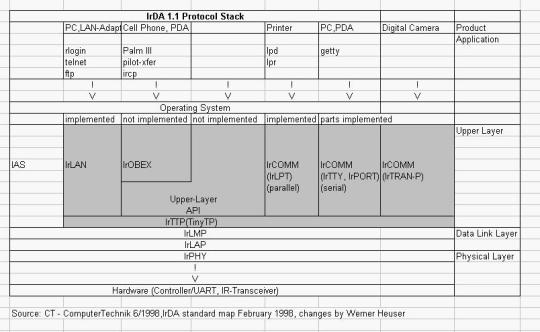
 |
|
 |
|

 - Running on
  -
- :
:
